
A WooCommerce to Shopify migration is mostly a data move. The theme, the apps, and the checkout get rebuilt on the Shopify side, but the part that has to survive the trip is the data: products and their variants, categories, customers, years of order history, coupons, product reviews, and the URLs that hold your search rankings in place. Move the data across cleanly and the rest is a normal store build. When it goes wrong, the first month after launch turns into a hunt for broken variants, missing images, and 404s.
This guide covers the migration from the data side. It uses Altera, a Shopify import and export tool that connects directly to your WooCommerce store, pulls everything into a spreadsheet you can review before anything touches Shopify, then imports it in the correct order. Because the data passes through a spreadsheet you control, you can see what is moving and fix it before anything reaches your live store.
If you would rather watch the whole process first, there is a full video walkthrough. Otherwise, read on.
How the migration works#
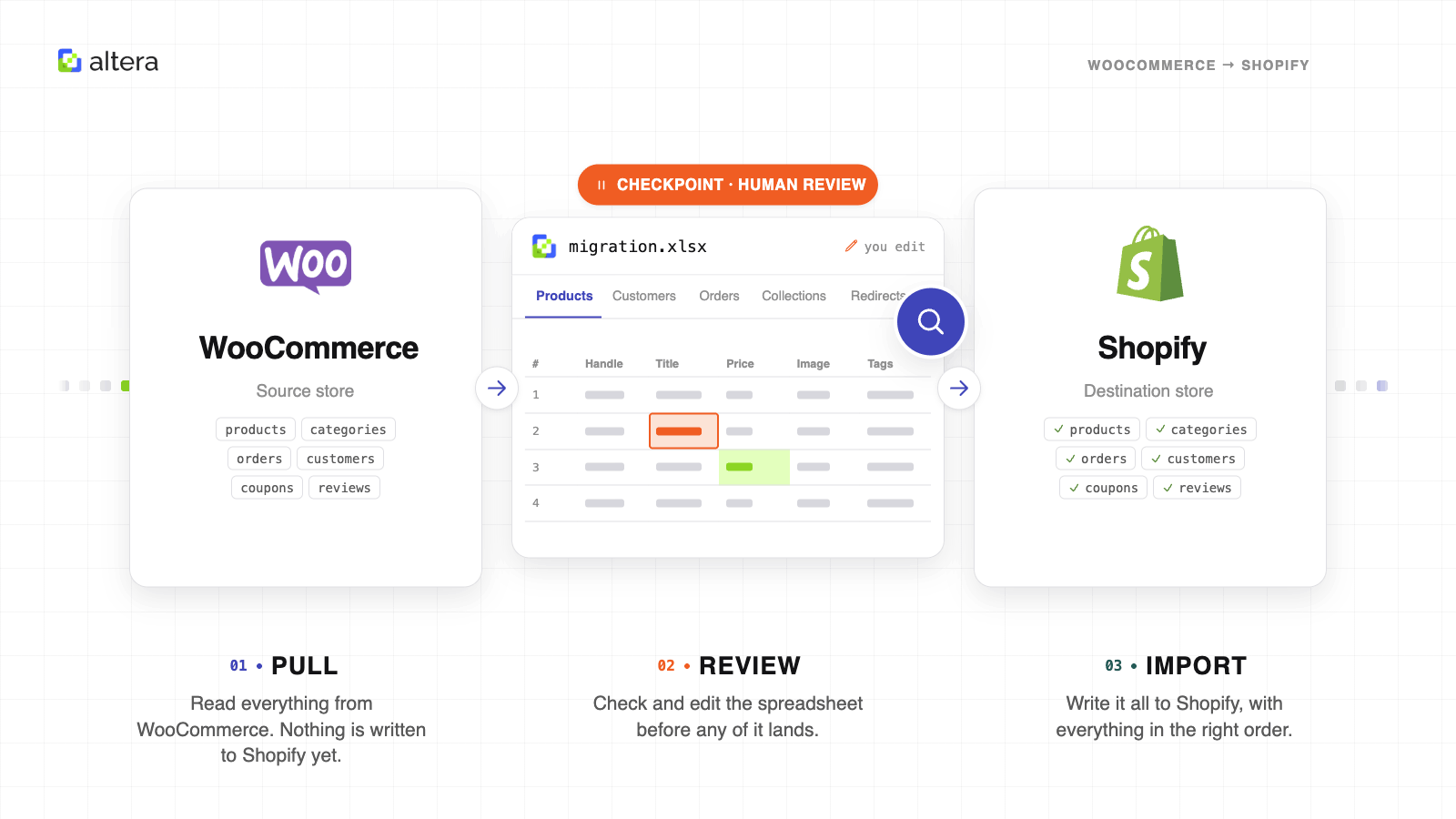
Most migration tools are a black box: you point them at the source, click go, and hope the result in Shopify is right. Altera splits the job into three stages, with a checkpoint in the middle.
- Connect and pull. Altera connects to the WooCommerce REST API and reads your store. Nothing is written to Shopify at this stage.
- Review. Altera converts the WooCommerce data into a single spreadsheet in the standard Shopify import format. You open it, check it, and edit anything that needs fixing before it goes anywhere.
- Import. You upload the reviewed file back into Altera, which imports it into Shopify in dependency order (products before the collections and orders that reference them).
That middle stage is worth the time. WooCommerce stores accumulate years of order data, custom fields, and product structures built by different people at different times. Auditing all of it in a spreadsheet first means you find the problems before they reach Shopify, rather than after.
Before you start#
You need a few things in place:
- Altera installed on the destination Shopify store. It is on the Shopify App Store, and the free plan is enough to run a migration.
- Admin access to the WooCommerce site, so you can create an API key.
- A publicly reachable WooCommerce site. Altera reads it over the public REST API, so a store behind a VPN or a strict IP allowlist needs an exception (more on that below).
- WordPress permalinks set to anything other than “Plain.” The WooCommerce REST API does not work on the Plain permalink setting. Check under WordPress Settings, then Permalinks. The default “Day and name” is fine, as is any of the other options.
Connect Altera to your WooCommerce store#
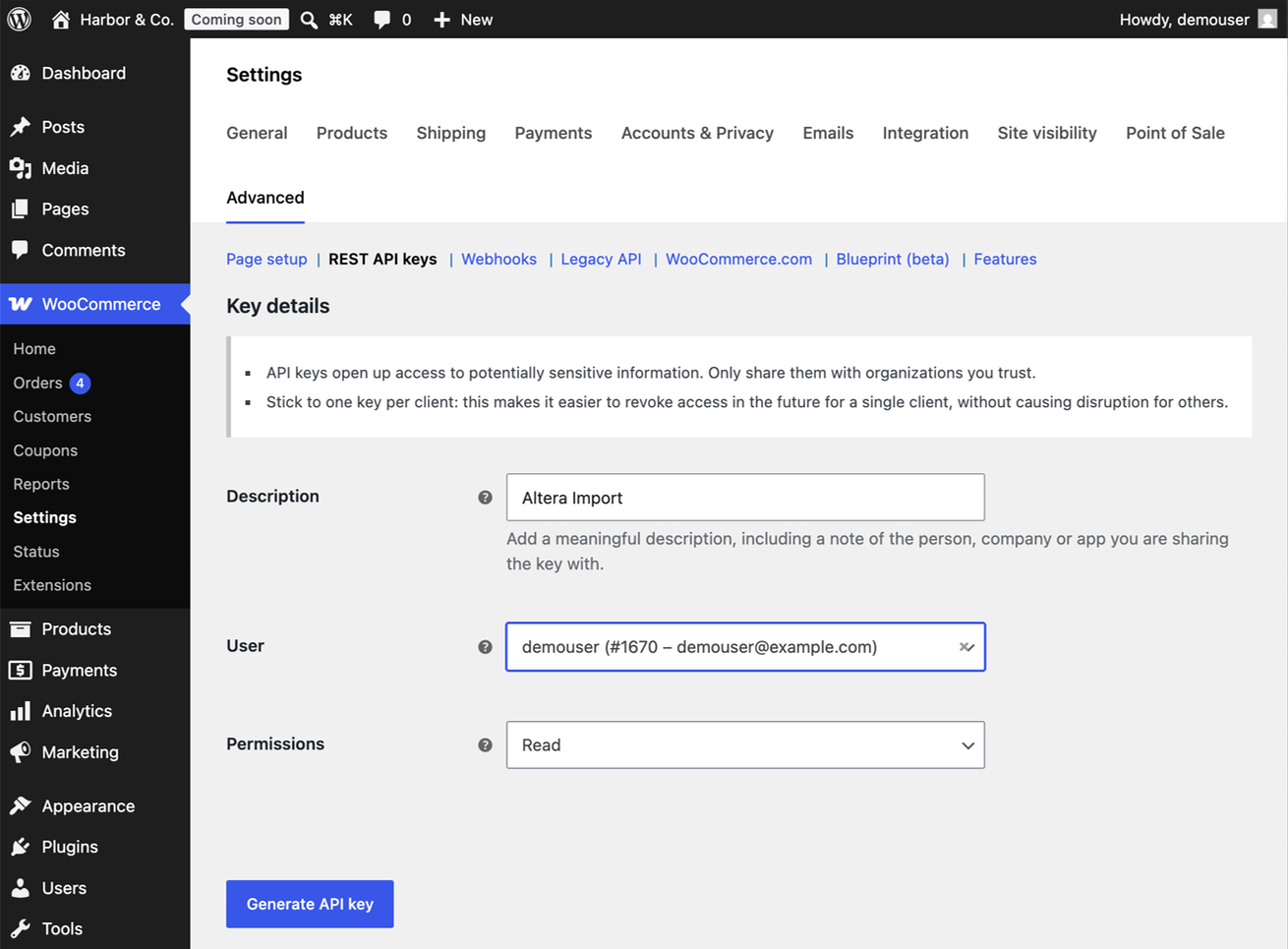
Altera reads WooCommerce through its REST API, so the first job is to create a read-only API key in WordPress and paste it into Altera.
Create the WooCommerce API key#
- In the WordPress admin, go to WooCommerce, then Settings, then Advanced, then REST API.
- Click Add key.
- Set the description to something you will recognise later, for example
Altera migration. - Leave the user as an admin account that can see your products and orders.
- Set Permissions to Read. Altera only reads your store, it never writes to WooCommerce, so a read key is all it needs and it is the safer choice.
- Click Generate API key.
WooCommerce gives you a Consumer key (it starts with ck_) and a Consumer secret (it starts with cs_). Copy both now. The secret is shown only once, so if you lose it you will need to generate a new key.
Enter the credentials in Altera#
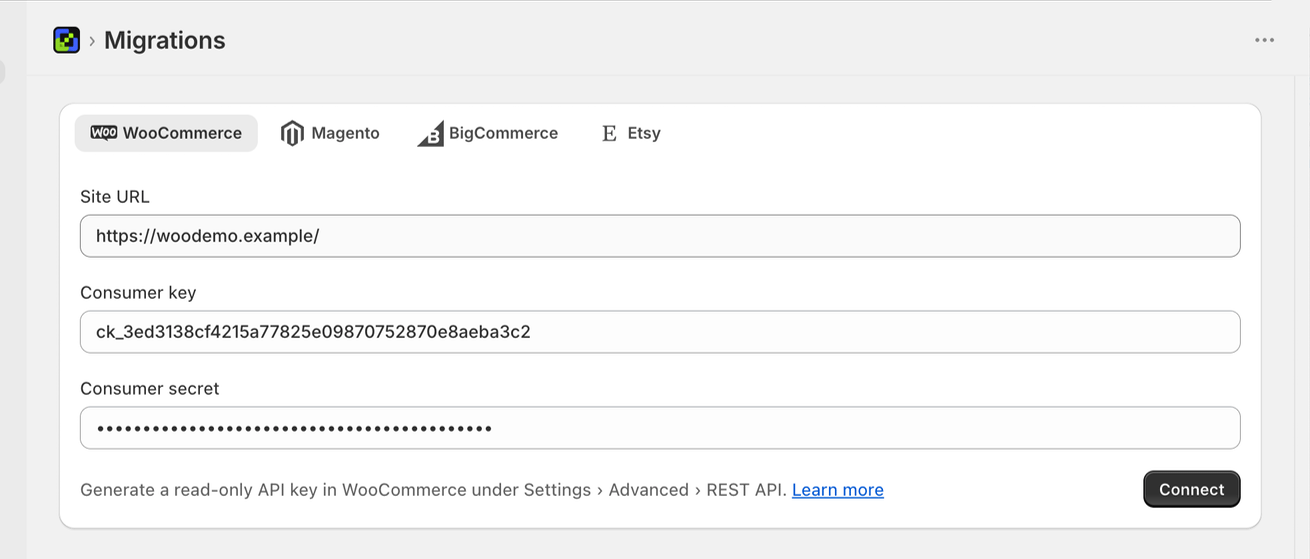
- Open Altera in your Shopify admin.
- In the left sidebar, choose Migrations, then select the WooCommerce tab.
- Enter your Site URL (usually just your domain, for example
https://yourstore.com), the Consumer key, and the Consumer secret. - Click Connect.
Altera tests the connection and reports how many products and orders it can see. If something is wrong, for example a mistyped secret, it returns an error code with a link to the relevant documentation so you can debug the connection rather than guess at it.
Behind a firewall or security plugin? If your site sits behind Cloudflare, Sucuri, or a security plugin like Wordfence, the connection may be blocked. Allowlist the WooCommerce REST API path, or Altera’s outbound IP address
34.182.181.120, and try again.
Pull your store into a spreadsheet#
Once connected, you choose what to bring across and Altera builds the file.
By default every data type is selected: products, categories, customers, orders, coupons, and reviews. You can deselect anything you do not want to move.
A couple of options to know about:
- Review format. Product reviews can come out in a raw format that keeps every available field, or pre-formatted for a Shopify reviews app. Altera supports the Judge.me and Loox formats directly, so the reviews import straight into whichever app you are using on Shopify. Pick the format that matches your destination.
- Filters. You can limit what gets pulled, for example only products with a
publishstatus, only orders after a certain date, or only records with thecustomerrole. For a full migration you take everything. Filters are useful when you want to move a subset, or to re-pull just part of the store later.
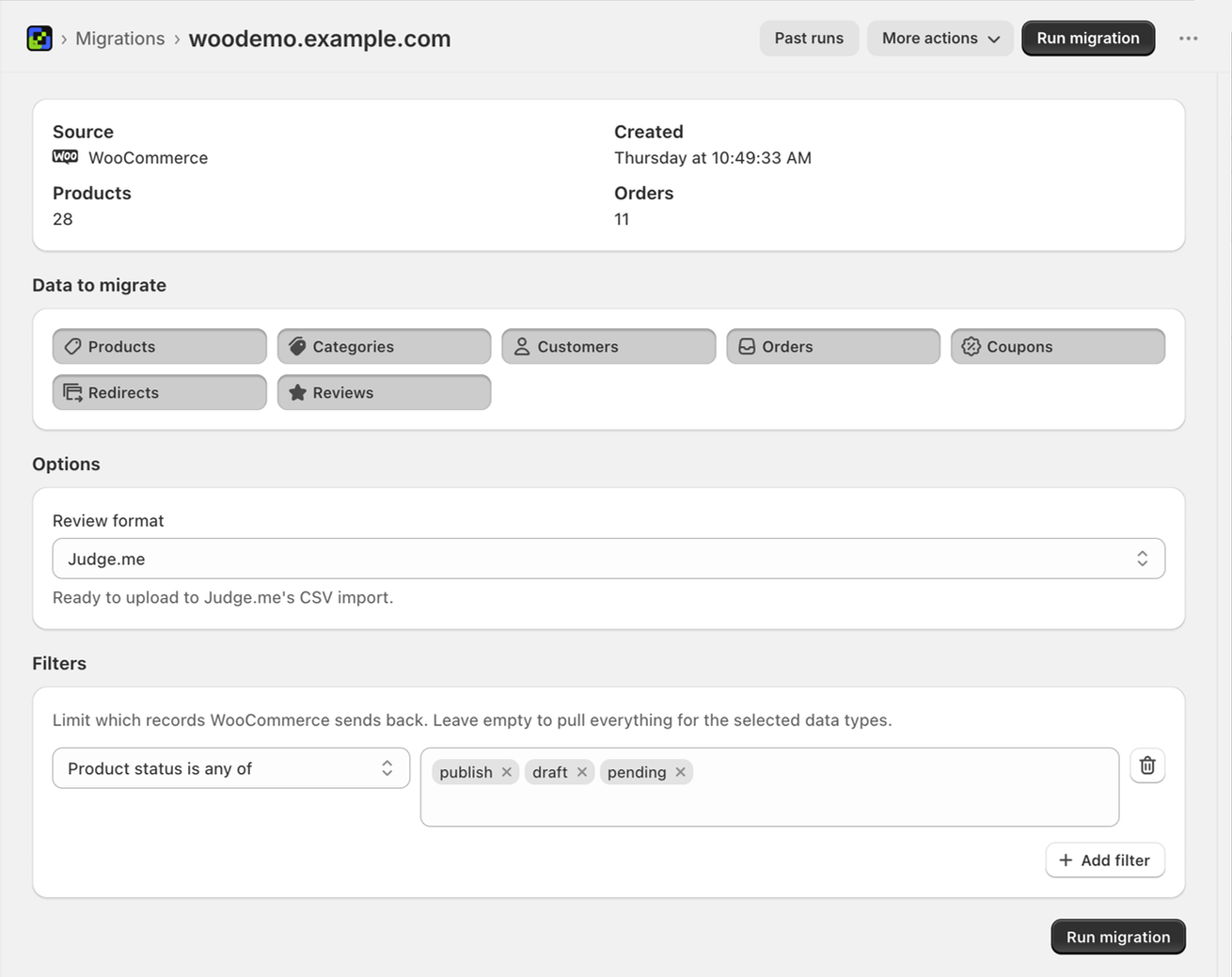
Click Run migration. Altera connects to the WooCommerce API, streams the data down, and builds the spreadsheet. This stage does not touch Shopify at all, it only reads WooCommerce and writes a file. As it runs you can click any data type to jump back into the WooCommerce admin and see exactly which records it is reading.
For a small store this takes a minute or two. Larger catalogs take longer, in proportion to how much data there is.
What you get back#
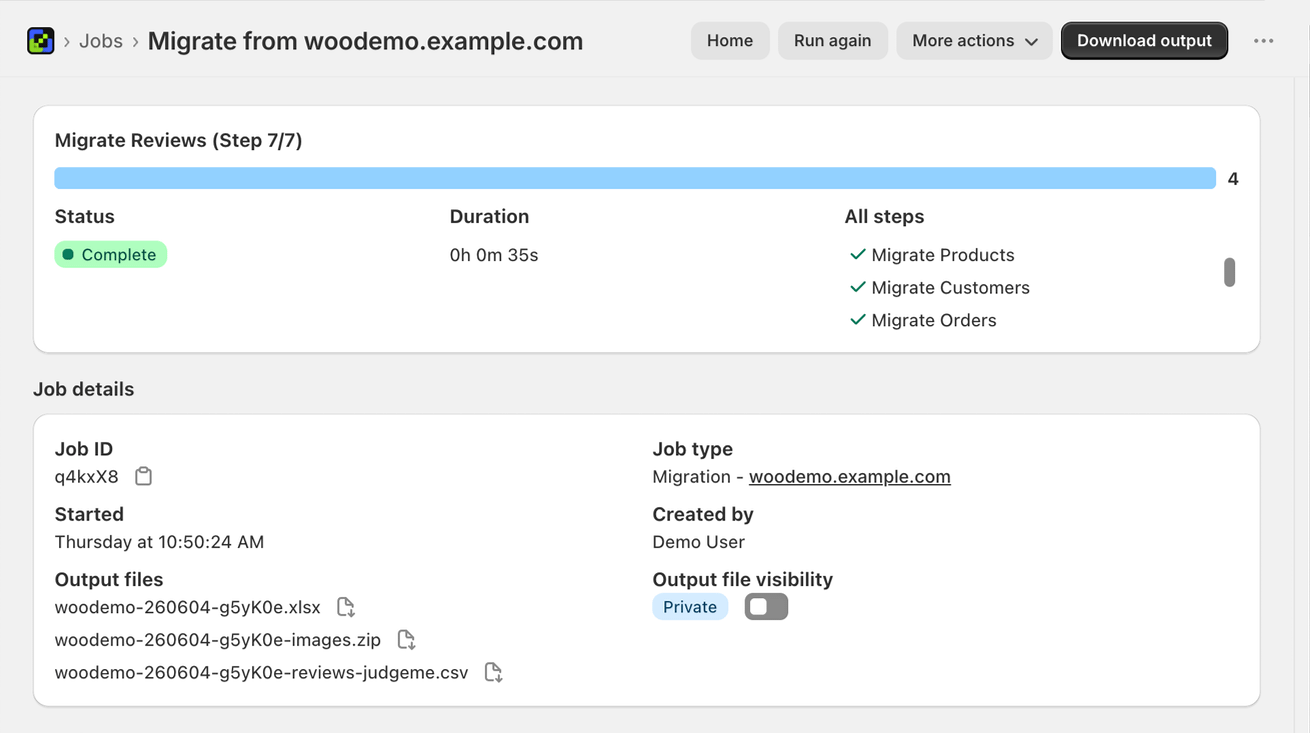
A normal Altera export is a single file. A WooCommerce migration usually produces a few, because WooCommerce holds data that does not fit in one Shopify-format sheet:
- The main spreadsheet (an
.xlsxfile) with a tab for each data type, in the standard Shopify import format. - An images ZIP, containing every image that was embedded inside a product’s HTML description (not the main product images, the ones dropped into the description body). These need to be moved across separately so the links do not break. More on this below.
- A reviews file, in the format you chose, if you included reviews.
Review the file before you import#
This is the step most migration tools skip. Open the spreadsheet in Excel or Google Sheets and look through the tabs before you import anything.
- Custom Collections holds your WooCommerce categories, converted to Shopify collections.
- Products holds the catalogue in the standard Shopify import format, with all the fields you expect: titles, descriptions, prices, images, SKUs, inventory, weight. Scroll to the right and you will find extra columns for WooCommerce attributes that do not map to a native Shopify field. Rather than drop that data, Altera carries it across attached to each product as metafields, so nothing is silently lost. (Today this brings the attribute values across as metafields. You set up or reuse the matching metafield definitions on the Shopify side.)
- Customers holds your customer records with their addresses.
- Orders holds your order history, with coupons and discounts carried through. Each order spans several rows, one per line item, transaction, and so on, which is how the Shopify orders format works.
- Redirects holds 301 redirects from your old WooCommerce URLs to their new Shopify paths, so search rankings and inbound links survive the move. This includes nested category URLs, which redirect to the correct Shopify collection rather than getting lost.
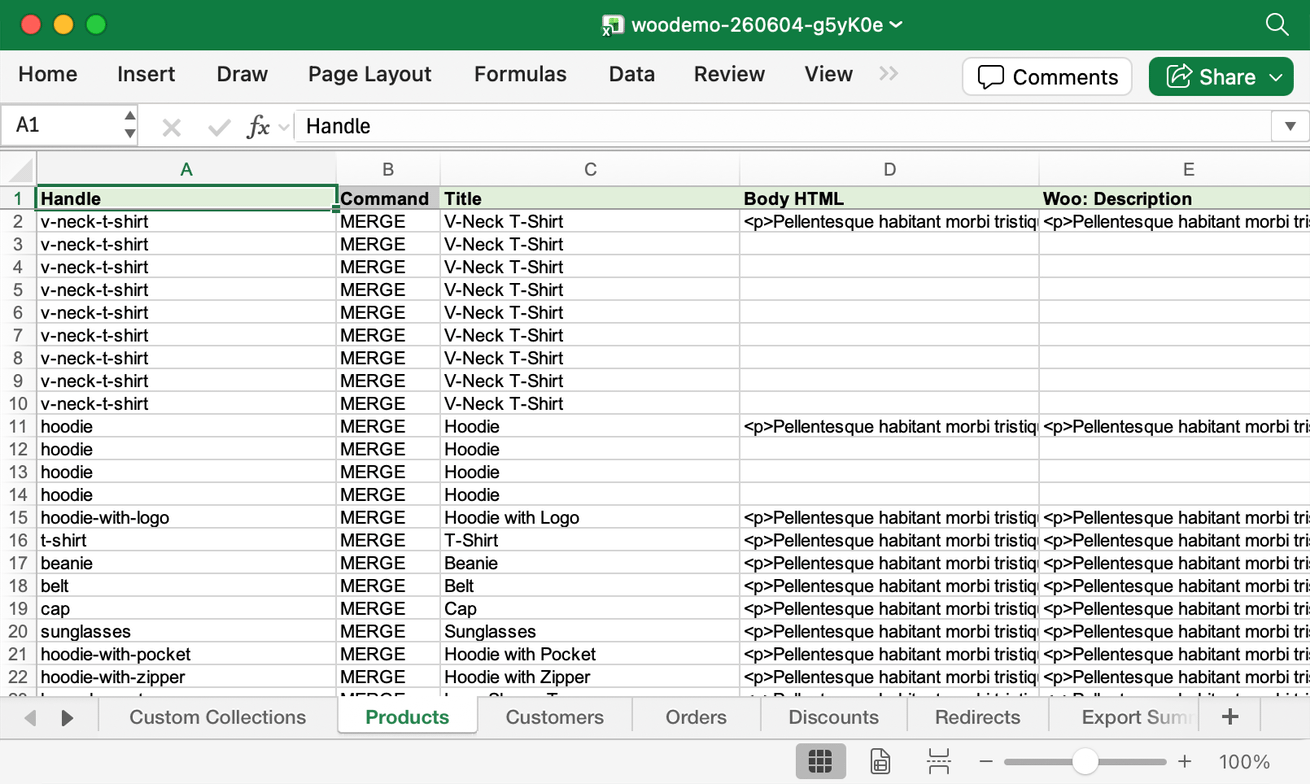
If anything needs changing, fix it here, in the file, before it reaches Shopify. This is the moment to clean up messy descriptions, correct a mis-mapped category, or drop records you do not want to bring over. When the file looks right, save it.
Import the reviewed file into Shopify#
Now you bring the data into Shopify.
- Go to the Altera home page and click Upload file.
- Choose the spreadsheet you just reviewed.
- Altera reads the file and may show a few warnings. Read them, but most are harmless: typically a handful of columns that are not official Shopify fields (the WooCommerce attributes from earlier), which Altera flags rather than fails on.
- Turn off staff order notifications. This is the one setting you must not miss. Without it, Shopify sends the store’s staff one email for every order imported. On a store with thousands of orders that is thousands of emails. It does not email your customers, only your own staff, but disable it anyway. There is an option to do this right in the import warnings.
- Click Start import and acknowledge the warnings.
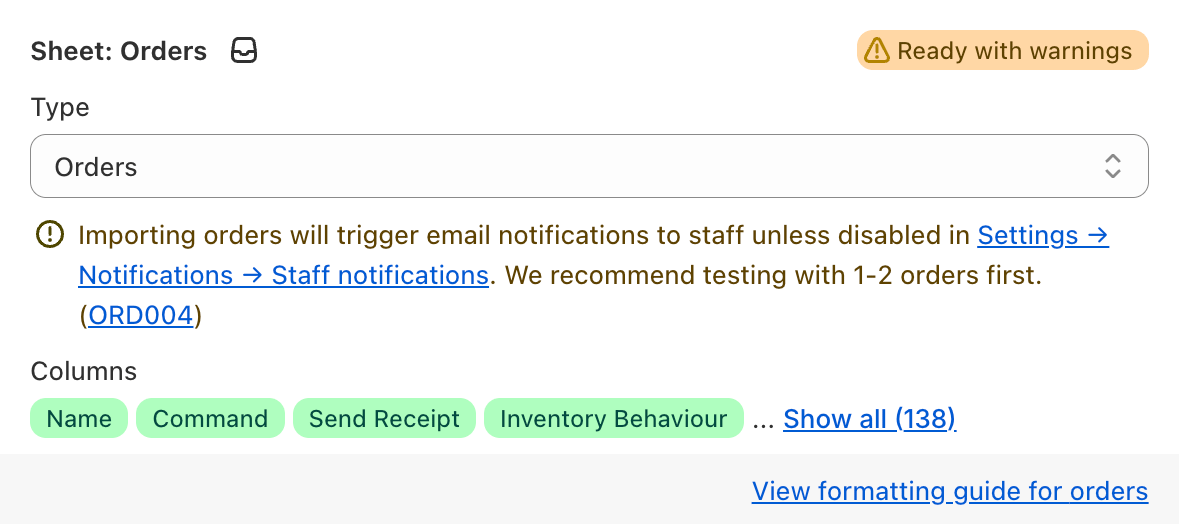
Altera works out the safe order automatically: products first, then the collections, redirects, and other records that point at them, so every dependency exists before something references it. You do not have to sequence the import by hand.
While it runs you can preview results in the app and click straight through to the Shopify admin to spot-check, without waiting for the whole job to finish.
The parts that need extra handling#
A clean migration is mostly the four steps above. A few specific things need a little more attention, because they do not move in a single pass.
Images embedded in product descriptions#
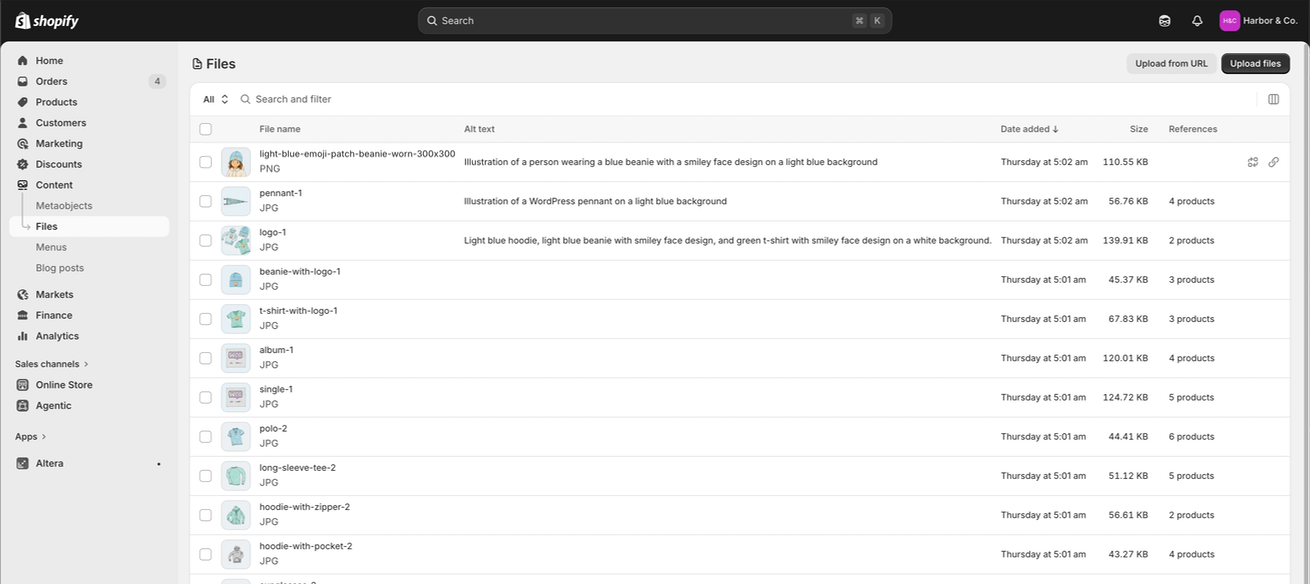
Main product images come across with the products. But images dropped into the body of a description (the ones inside the HTML, not the product gallery) are handled separately, which is what the images ZIP is for. Download it, unzip it, then in the Shopify admin go to Content, then Files, select all the images, and upload them. Once they are hosted on Shopify’s CDN, the descriptions that reference them resolve correctly and the file lives on Shopify rather than pointing back at your old WooCommerce server.
Product reviews#
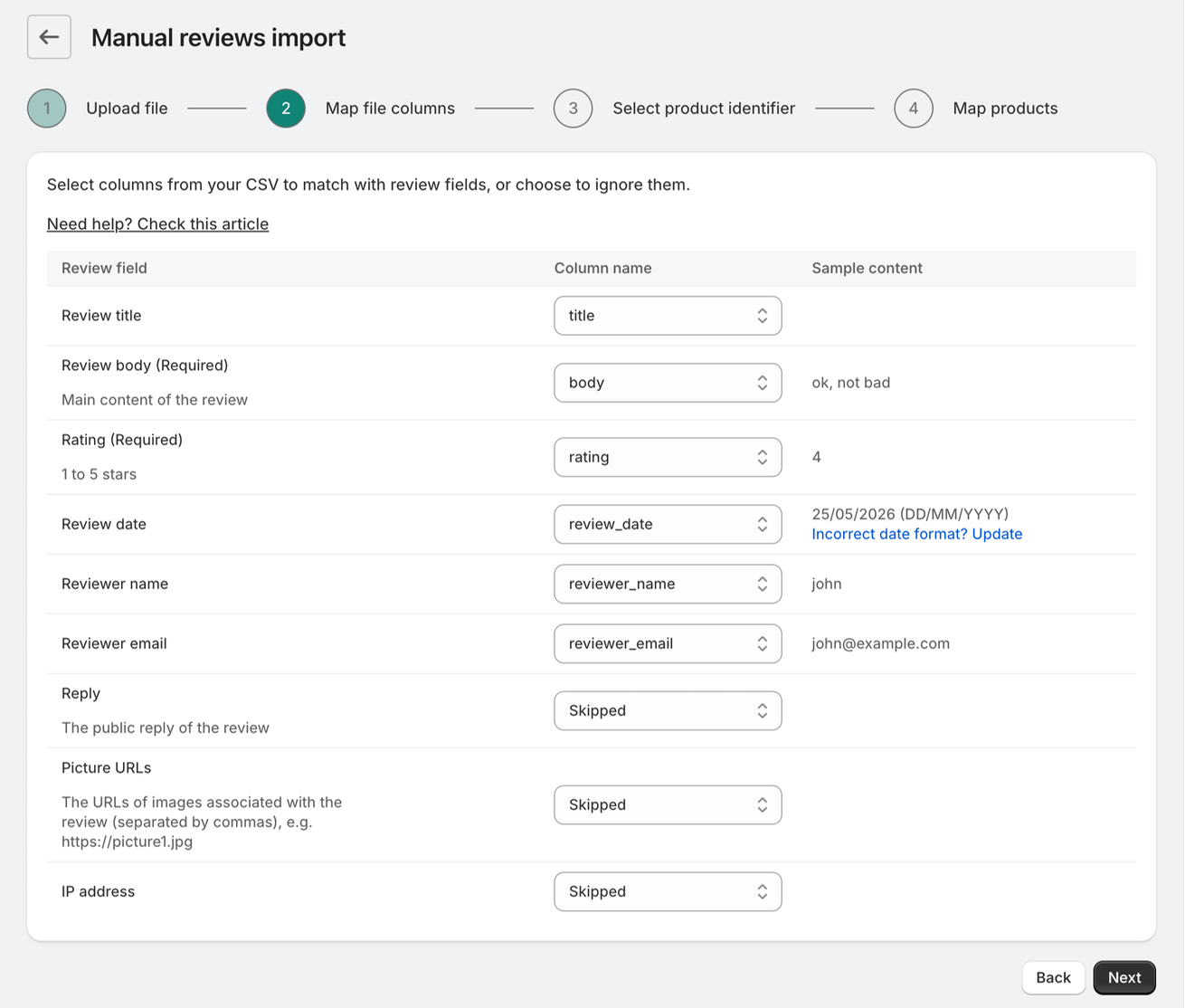
There is no single standard way to import reviews into Shopify, because reviews live in an app, not in Shopify core. So reviews are a separate, final step using your reviews app’s own importer. With Judge.me, for example: open the app, go to Settings, choose Import reviews from a spreadsheet, add the reviews file Altera generated, and match on the product handle so each review attaches to the right product. If your reviews have no image URLs, the importer may warn about that; you can skip it. Loox works the same way with its own importer. Do this after the products are in, so the handles exist to match against.
Customer passwords#
Customer records migrate cleanly. Passwords do not, and this is true of any WooCommerce to Shopify migration, not a limitation of one tool. WordPress and Shopify hash passwords differently, so there is no way to carry the old passwords across. After launch, customers set a new password the first time they log in, through Shopify’s account activation flow. Plan a short note to customers explaining the change so it does not look like something is broken.
Order side effects#
Imported orders look like brand-new orders to anything watching for new orders. Staff notifications are the obvious one, handled in the import step above, but third-party apps matter too. A marketing tool like Klaviyo may fire post-purchase or abandoned-cart flows. A 3PL may try to ship year-old orders. An accounting integration may try to re-bill them. Before you import orders, walk through the apps on the destination store and pause anything that acts on new orders, then re-enable them once the import is done. We go deeper on this in the guide to importing orders to Shopify.
After the migration: what to check#
Once the import completes, work through a short validation pass before you point your domain at the new store:
- Product and variant counts. Compare totals against WooCommerce, and spot-check a few variable products to confirm their variants came across intact rather than flattened or split.
- Images. Open a product that had an image in its description and confirm the image loads and is hosted on the Shopify CDN, not still linked to WooCommerce.
- Collections. Confirm your categories arrived as collections and the navigation makes sense.
- Customers. Open a few records and check the addresses are attached.
- Orders. Open an order and confirm the line items link to the right products and the totals match the original.
- Redirects. Test a handful of old WooCommerce URLs, including a deep category page, and confirm they land on the right Shopify page.
- Reviews. Check that reviews are attached to the correct products with the right ratings.
If anything is off, fix it in the file and re-import that part before you go live, while the old store is still your source of truth.
For agencies doing this repeatedly#
If you migrate stores for clients, the same workflow runs from the command line. Altera has a CLI you can script into a repeatable migration playbook, so the export, review, and import steps become part of a checklist you run the same way every time rather than clicking through the UI for each store.
Pricing is flat: Altera’s paid plan is a single $15 per month, with the same throughput on every plan and no per-job size caps, and there is a free plan that is enough to run and evaluate a migration. So a migration does not push you into a higher tier the way a tiered tool would.
The short version#
A WooCommerce to Shopify migration is a data problem, and it is controllable when you can see the data before it lands. Connect Altera to WooCommerce with a read-only API key, pull your products, categories, customers, orders, coupons, reviews, and redirects into one spreadsheet, review and fix it in the file, then import it into Shopify in the order Altera works out for you. Handle the few things that move separately (description images, reviews, passwords, order side effects), run the post-migration checklist, and you have moved the store across with the data intact and the search equity preserved.