
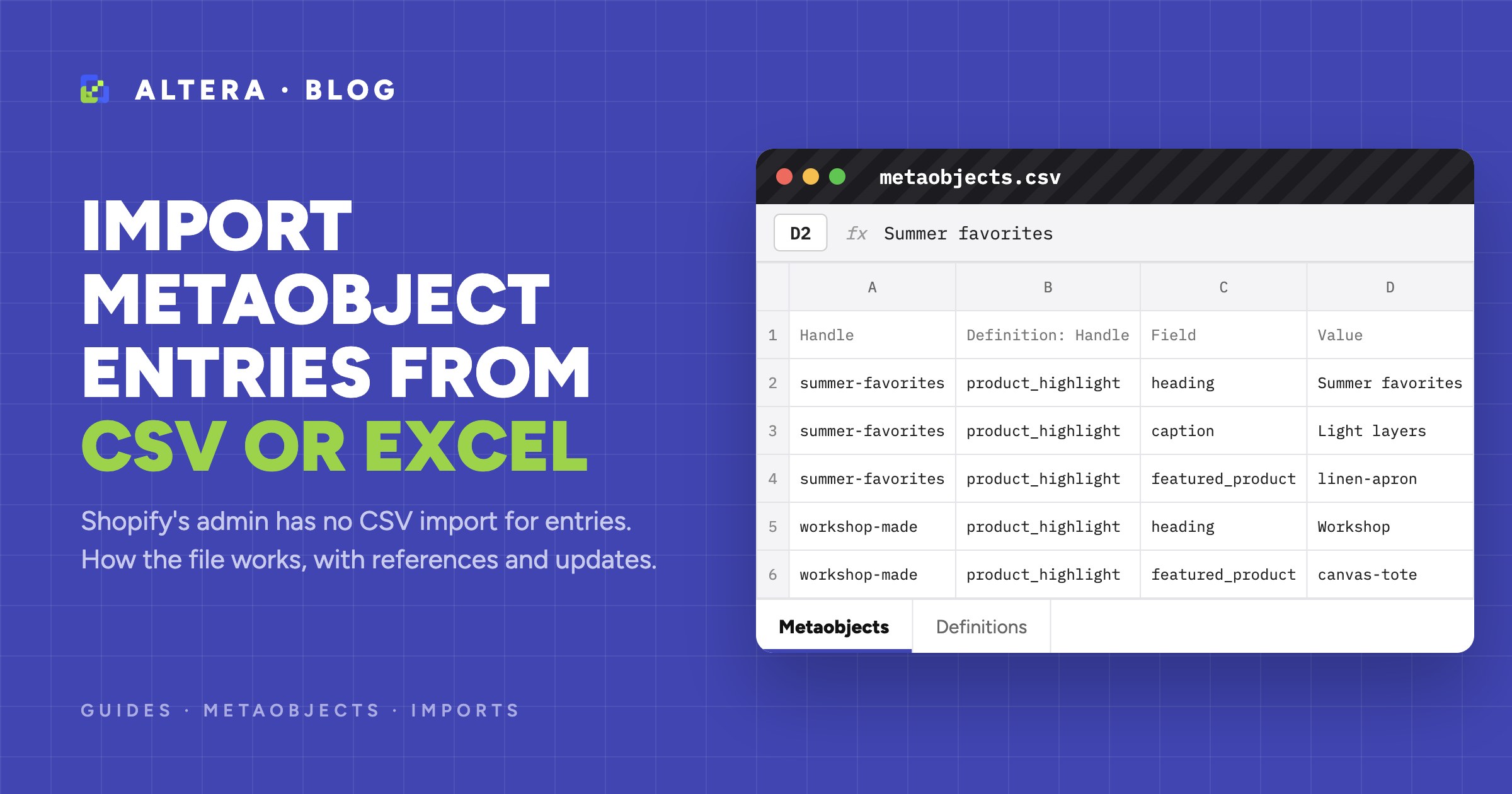
The Shopify admin has no CSV import for metaobject entries. You add entries one at a time under Content > Metaobjects, or a developer creates them through the Admin API. To create many entries from a spreadsheet, use an import app such as Altera, with one row per field and the columns Handle, Definition: Handle, Field, and Value.
This guide shows what Shopify offers, how the file works, and how to update entries without creating duplicates.
What Shopify offers for metaobject entries#
- The admin form. In Content > Metaobjects, open a definition, click Add entry, fill in the fields, and save. See Creating entries.
- Sidekick. The same Help Center article says that you can ask Sidekick to create or edit an entry from a description. You still click Save for each entry.
- The Admin API. Developers can use
metaobjectCreateandmetaobjectUpsert.
Shopify’s CSV files article lists CSV import and export for products, customers, inventory, and admin and POS users, and export only for orders and discounts. It does not list metaobjects.
Shopify’s metaobject limits apply to any import method: up to 1,000,000 entries for each definition, and up to 40 fields for each definition.
Before you start: the definition must exist#
An entry belongs to a metaobject definition, which sets its fields and their types. If the definition is not on the store, the row fails with MOBJ005.
You have three ways to create it:
- In the admin. Go to Settings > Custom data or Content > Metaobjects.
- From a spreadsheet. Follow How to import and export Shopify metaobject definitions. A definitions sample file is available.
- From another store. Follow How to copy metaobjects between Shopify stores.
If one workbook has a sheet for definitions and a sheet for entries, Altera imports the definitions first.
The file: one row per field#
Each entry takes one row for each field that you set. This example has a definition with the type product_highlight and the field keys heading, caption, image, and featured_product.
| Handle | Definition: Handle | Status | Field | Value |
|---|---|---|---|---|
| summer-favorites | product_highlight | Active | heading | Summer favorites |
| summer-favorites | product_highlight | Active | caption | Light layers for warm days |
| summer-favorites | product_highlight | Active | image | https://example.com/images/summer.jpg |
| summer-favorites | product_highlight | Active | featured_product | linen-apron |
| workshop-made | product_highlight | Draft | heading | Made in our workshop |
| workshop-made | product_highlight | Draft | featured_product | canvas-market-tote |
The same rows as CSV:
Handle,Definition: Handle,Status,Field,Value
summer-favorites,product_highlight,Active,heading,Summer favorites
summer-favorites,product_highlight,Active,caption,Light layers for warm days
summer-favorites,product_highlight,Active,image,https://example.com/images/summer.jpg
summer-favorites,product_highlight,Active,featured_product,linen-apron
workshop-made,product_highlight,Draft,heading,Made in our workshop
workshop-made,product_highlight,Draft,featured_product,canvas-market-tote
What each column does:
Handlegroups the rows of one entry and finds an existing entry. Keep the rows of one entry next to each other.Definition: Handleis the type of the definition. Every row needs it.Fieldis the field key, not the field name that you see in the admin.Valueis the value in the format for that field type.StatusisActiveorDraft. Use it only for definitions that have the active and draft status.
The Display Name column appears in exports, but the import does not write it. Shopify takes the name of an entry from the field that the definition uses as its display name. If you don’t choose one, Shopify uses the first text field.
For all columns, see Metaobject fields.
Value formats, including references#
Metaobject fields use the same types as metafields. These are the common ones:
| Field type | Example value |
|---|---|
| single_line_text_field | Summer favorites |
| color | #1E6F5C |
| date | 2026-11-02 |
| money | {"amount":"20.00","currency_code":"USD"} |
| product_reference | linen-apron |
| collection_reference | summer-sale |
| customer_reference | jane@example.com |
| file_reference | summer.jpg or https://example.com/images/summer.jpg |
| metaobject_reference | product_highlight.summer-favorites |
| list.product_reference | linen-apron, canvas-market-tote |
Because references use handles, a file works on any store that has the same handles. Three rules matter:
- The referenced object must exist first. Import products and collections before the entries that point to them. In one workbook, Altera imports metaobjects before products, so use a separate import for the entries.
- A file name must match a file in Content > Files. A public URL also works: Altera uploads the file during the import.
- A metaobject reference needs the definition and the handle, separated by a period. A handle without its definition, such as
summer-favorites, does not import, because the same handle can exist in more than one definition.
The metafields reference has the formats for all types.
Walkthrough: import entries with Altera#
1. Get a template built from your store#
In Altera, go to Tools > Metaobject import template and click Create template. The Excel file has one block of rows for each definition on your store, one row per field, with Command set to MERGE and a working example value for each field. See Metaobject import template.
To see a complete example instead, download the sample entries file. It needs the sample definitions on the store.
2. Fill in the file#
Replace the demo Handle in a block with the handle of your entry, and keep it the same on every row of the block. Edit the Value column, and delete the blocks that you don’t need. To add another entry, copy a block and give it a new handle.
3. Upload the file and check the analysis#
Upload the file from the Altera home page. Altera detects the data type and shows the columns that it recognizes. It reports a missing Definition: Handle value (MOBJ001) before the import starts. Test with one or two entries first.
4. Start the import and read the results#
Click Start import. When the job is done, download the results file and check the Import Comment column for messages about each row. Then open a few entries in Content > Metaobjects.
Update existing entries without duplicates#
Altera looks for an existing entry by ID, and then by Handle within the definition. An ID from another store does not match, so Altera falls back to the handle. Import a file twice with the same handles and the entries are updated, not duplicated.
If you leave the handle blank, Shopify generates one, so each import creates new entries. Always fill in Handle.
The Command column decides what happens to each entry:
| Command | Entry exists | Entry does not exist |
|---|---|---|
MERGE | Updates it | Creates it |
UPDATE | Updates it | Skips the row |
NEW | Skips the row | Creates it |
REPLACE | Deletes it and creates it again | Creates it |
DELETE | Deletes it | Skips the row |
Use MERGE for most jobs, and include only the fields that you change. Fields that are not in the file are not sent to Shopify. A blank Value is also skipped, so a blank cell does not clear a field.
Use REPLACE with care. The new entry gets a new ID, and Shopify says that a deleted entry is removed from anywhere it is used. Metafields that pointed to the old entry must be set again.
Use the entries on products and variant options#
Entries do nothing until you connect them to something:
- Metafields. Import a product file with a column such as
Metafield: custom.highlight [metaobject_reference]and a value such asproduct_highlight.summer-favorites. - Variant options. Import a product file with
Option1 Linked To, and use entry handles as the option values. See How to import and export Shopify products with linked variant options and How to connect variant options to category metafields in bulk. - Web pages. If the definition publishes entries as web pages, each
Activeentry can have its own page on your store.
Common errors and fixes#
MOBJ001: the Definition: Handle column is missing or has blank cells. Add the definition type to every row.
MOBJ005: the definition is not found. Create the definition first, and check that the type matches exactly. The type is product_highlight, not the name Product highlight.
MOBJ006: a field key does not match the definition. Altera skips that field, and the warning lists the valid keys. Use the key, not the display name of the field.
MFLD012: a metaobject reference has no definition. Write faq.question-1, not question-1.
MFLD003: a reference or file can’t be resolved. The product, collection, or file is not on the store, and Altera leaves the field blank. Import the missing object first, or use a file URL.
A definition from another app can’t be created. Some definitions belong to an app, for example the FAQ definitions of the Shopify Knowledge Base app. Install the app on the store and create one entry there before you import.
A value is rejected. Shopify checks the value against the validations of the field, such as a list of choices or a maximum length. Fix the value in the file and import that entry again.
Before you run an import on a live store, export the entries that you are about to change as a backup. The Import best practices article has a checklist.
FAQ#
Can I import metaobjects from a CSV in Shopify?#
Not in the Shopify admin. Shopify’s CSV files article does not list metaobjects, and the admin creates entries one at a time. An import app such as Altera reads a CSV or Excel file and creates the entries for you. You can also use the Admin API.
How do I bulk create metaobject entries?#
Create the definition, then make a file with one row per field and the columns Handle, Definition: Handle, Field, and Value. Set Command to MERGE and import the file. In Altera, Tools > Metaobject import template builds this file from your store’s definitions.
How do I copy metaobjects to another store?#
Install Altera on both stores. In the source store, export Metaobject Definitions and Metaobjects in one file, and set File name format to CDN URL under Advanced options. Import that file in the destination store. Products and collections that the entries reference must be on the destination store first. See How to copy metaobjects between Shopify stores.
How many metaobject entries can I import?#
Shopify allows up to 1,000,000 entries for each definition. On the free Starter plan, Altera imports up to 10 items of each data type per import. Altera Pro has no item limit, and CSV and zip files can be up to 1 GB.
Do I need to know the Shopify API?#
No. You fill in a spreadsheet and upload it. You need the definition type and the field keys, and the template fills in both for you.