
Shopify can export discount codes, but it can’t import them. The Help Center says: “You can’t import discount codes to your store using CSV files.” To add hundreds of codes from a spreadsheet, use an import app such as Altera, or a developer can use the Admin API.
This guide covers the two cases: many discounts with one code each, and one discount with many unique codes. It also shows how to add codes to an existing discount and how to move discounts to another store.
What Shopify offers for discount codes#
- Export. Go to Discounts and click Export to download a CSV of the current page, all discounts, the selected discounts, or the current search. See Export discount codes.
- The admin form. You create discounts in the admin, one at a time. See Discount codes.
- The Admin API. Developers can use
discountRedeemCodeBulkAdd, which takes up to 250 codes per call. - Store copies don’t include codes. The duplicate store guide says: “Discount codes can’t be transferred.”
Shopify’s limits apply to any method. A store can have up to 20,000,000 unique discount codes, and a discount code can apply to up to 100 specific customers, products, and variants.
Two cases, two file layouts#
Case 1: many discounts with one code each#
Each discount has its own value and limits, for example one code per influencer with a different percentage. Use one row per discount.
| Title | Code | Type | Value Type | Value |
|---|---|---|---|---|
| Partner Ana | ANA15 | Amount off Order | Percentage | 15 |
| Partner Ben | BEN20 | Amount off Order | Percentage | 20 |
| Winback $10 | WINBACK10 | Amount off Order | Fixed Amount | 10 |
The full rows as CSV, with Command, Method, a usage limit, and a start date:
Title,Command,Code,Type,Method,Value Type,Value,Limit Total Times,Starts At
Partner Ana,MERGE,ANA15,Amount off Order,Code,Percentage,15,200,2026-12-01 00:00:00 -0500
Partner Ben,MERGE,BEN20,Amount off Order,Code,Percentage,20,200,2026-12-01 00:00:00 -0500
Winback $10,MERGE,WINBACK10,Amount off Order,Code,Fixed Amount,10,,
You can leave out Title. The code then becomes the title of the discount. The Basic Coupon Codes sample file uses this layout.
Case 2: one discount with many unique codes#
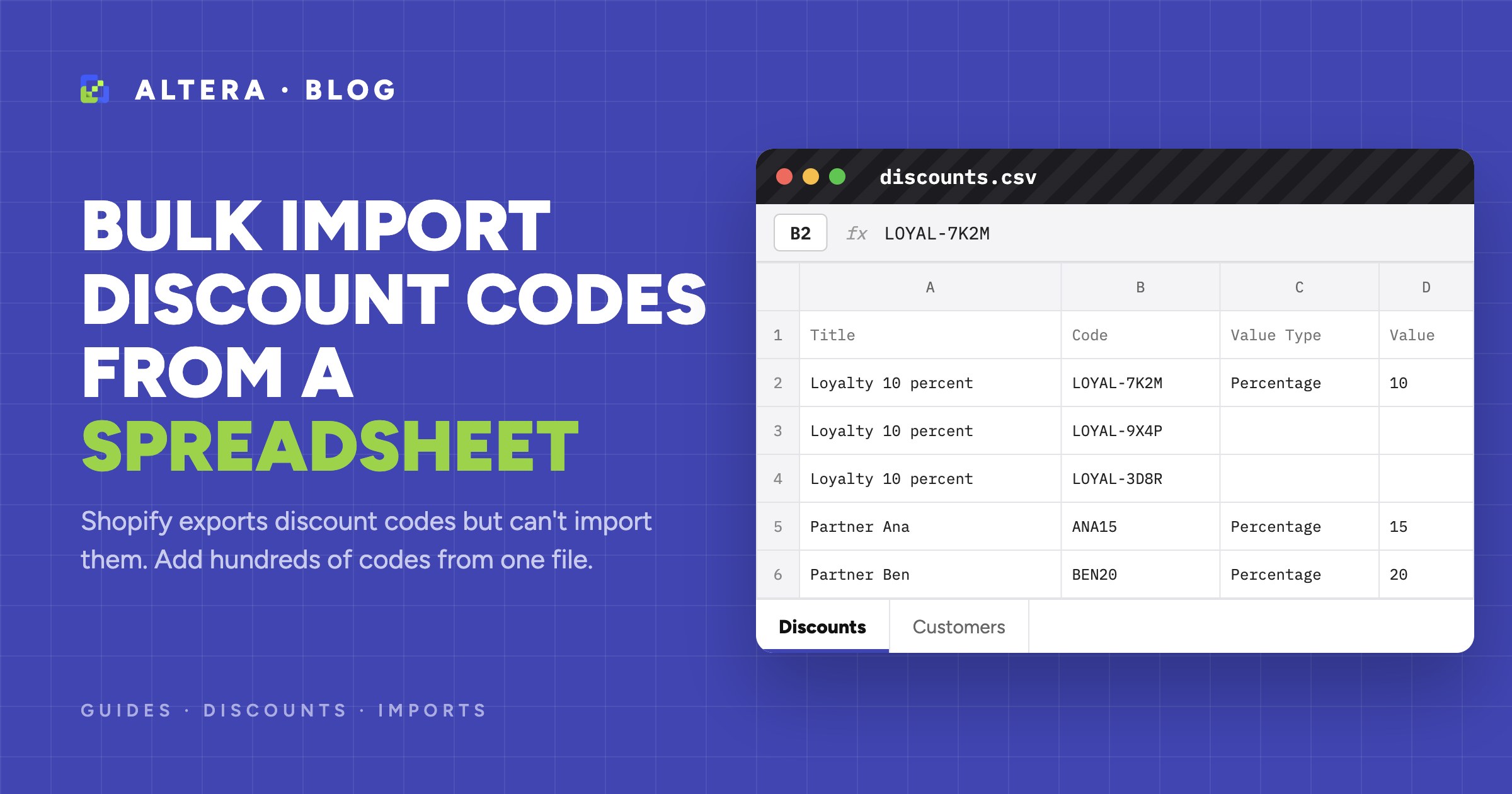
All codes share the same rules, for example single-use codes for a loyalty program. Repeat the Title on every row, with a different Code. Put the rules on the first row.
| Title | Code | Type | Value Type | Value |
|---|---|---|---|---|
| Loyalty 10 percent | LOYAL-7K2M | Amount off Order | Percentage | 10 |
| Loyalty 10 percent | LOYAL-9X4P | |||
| Loyalty 10 percent | LOYAL-3D8R |
The full rows as CSV, with Command, Method, and Limit Total Times:
Title,Command,Code,Type,Method,Value Type,Value,Limit Total Times
Loyalty 10 percent,MERGE,LOYAL-7K2M,Amount off Order,Code,Percentage,10,1
Loyalty 10 percent,,LOYAL-9X4P,,,,,
Loyalty 10 percent,,LOYAL-3D8R,,,,,
Altera adds the codes in batches, so a large list works in one file. After you add more than 100 codes, the count in the Shopify admin can take a few minutes to update.
Shopify’s API docs describe the usage limit as the number of times the discount can be redeemed. For a discount with many codes, a Shopify staff answer on the developer forum says that the limit applies to each code and not to the total. Test one code before you send a large batch.
The columns you need#
Type:Amount off Products,Amount off Order,Free Shipping, orBuy X Get Y. A new discount needs it.Method:CodeorAutomatic. A new discount needs it.Value Type:Percentage,Fixed Amount, orFree.Freeis for Buy X Get Y.Value:20means 20 percent, or an amount of 20 in your store currency.Limit Total Times: write the number without separators.1,000fails with DISC008.0or blank means no limit.Limit One Use Per Customer:TRUEorFALSE.Starts AtandEnds At: for example2026-12-01 00:00:00 -0500. A blankStarts Aton a new discount means that it starts now. A blankEnds Aton a new discount means that it never ends.
For all columns, see Discount fields.
Altera imports all four types above, with both methods. It also handles combinations, minimum requirements, tags, and subscription fields. The subscription fields need a subscriptions app on the store. Discounts that another app created can’t be exported or imported, because their rules belong to that app.
Walkthrough: import discount codes with Altera#
1. Fill in the file#
Start with the CSV from the case above, or a sample file. Use Excel or CSV.
2. Upload the file and check the analysis#
In Altera, upload the file from the home page. Altera detects the data type and shows the columns that it recognizes. It reports an invalid Type, Method, or Value before anything changes in your store.
3. Start the import and read the results#
Click Start import. When the job is done, download the results file and check the Import Comment column for messages about each row. Then open a few discounts in Discounts in the Shopify admin. Test one code in a checkout before you send the codes to customers.
Add codes to an existing discount#
The Code Command column on the first row of a discount decides what happens to its codes:
MERGEadds the listed codes and keeps the others. Codes that are already on the discount are skipped.REPLACEremoves all existing codes and adds the listed ones.DELETEremoves the listed codes.
A short file works for every type of code discount. With only Title, Command, Code, and Code Command, Altera adds the codes and leaves the rules of the discount as they are:
| Title | Command | Code | Code Command |
|---|---|---|---|
| Loyalty 10 percent | UPDATE | LOYAL-5T1Q | MERGE |
| Loyalty 10 percent | LOYAL-2W6Z |
Codes do not work on automatic discounts. A row with a code for an automatic discount reports OK and adds no code.
An update changes only what the file names:
- A column that is not in the file does not change. This includes products, collections, and values. Include
Eligibility: Customer Typewhenever you includeEligibility: Customer Values. With values and no type, the discount opens to all customers. - A blank cell does not change the value. The exception is a blank
Tagscell withTags Commandset toREPLACE, which clears the tags. Applies To: Valueswith no type replaces the products or collections and keeps the current type. A discount that applies to all items does not change.Applies To: Typewith no values keeps the current products or collections, unless the type isAll.Valuewith noValue Typekeeps the current value type.
To apply an Amount off Products discount to the whole order on purpose, set Applies To: Type to All. Shopify then stores it as an Amount off Order discount. An amount off each item becomes one amount off the order. This does not work on Buy X Get Y: the row fails and the discount does not change. A blank cell or a missing column does not change which items a discount applies to.
To open a discount to all customers, set Eligibility: Customer Type to All.
Limit Uses Per Order works on Buy X Get Y and on fixed amount discounts. On Amount off Products, 0 means each item and 1 means once per order. On Amount off Order, use 1 only. On a percentage discount, a value fails the row with DISC037, and a blank cell passes. An exported file leaves this cell blank for a percentage discount, so you can import it as it is.
Altera finds an existing discount by ID, then Title, then the first Code. If two discounts have the same title, the row fails with IMP006. Use the ID in this case. A new code is not on any discount yet, so a file that adds codes needs Title or ID.
Limit codes to products, customers, or segments#
To limit a discount to specific products or collections, set Type to Amount off Products and use these columns:
| Applies To: Type | Applies To: Values | What it means |
|---|---|---|
Products | linen-apron,canvas-market-tote | Whole products, by handle |
Products | linen-apron|APR-LIN-SG | One variant, as handle and SKU |
Collections | summer-sale | Collections, by handle |
To limit who can use a discount, use Eligibility: Customer Type and Eligibility: Customer Values:
| Eligibility: Customer Type | Eligibility: Customer Values |
|---|---|
Customers | jane@example.com,sam@example.com |
Segments | VIP customers |
Markets | Canada |
The customers, segments, and markets must exist on the store. When you update a discount, these values replace the current list. Blank cells keep the current value. One exception: a blank Tags cell with Tags Command set to REPLACE clears the tags. See the Coupon Codes for Specific Customers sample.
Automatic discounts#
An automatic discount has no code. Set Method to Automatic, give it a Title, and leave out Code. See the Automatic Discount for Specific Customers sample. Shopify allows up to 5 customer segments on an automatic discount, and up to 100 on a discount code.
Move discounts from another store or platform#
From another Shopify store. Export Discounts with Altera on the source store, and import the file on the destination store. The rules point to handles and emails, so create the products, collections, and customers first. In one workbook with several sheets, Altera imports discounts after those data types. Used counts are export only, so usage does not carry over.
From WooCommerce. Altera’s WooCommerce migration includes coupons. See Migrate WooCommerce to Shopify.
From Magento. Altera’s Magento migration keeps the discounts on orders, but it does not move Magento coupon rules. To move them, export your coupons from Magento and build a discount file with the columns in this guide.
Common errors and fixes#
DISC011: failed to add codes. A code is a duplicate, or it breaks one of Shopify’s rules. Check the message in the results and remove that code from the file.
A row updates the wrong discount. The title did not match, but the code is already on another discount, so Altera found that discount by its code. To create new discounts only, set Command to NEW. A row then skips if the discount exists.
DISC037: Limit Uses Per Order on a percentage discount. Clear the cell. For a fixed amount, set Value Type to Fixed Amount and enter the amount in Value.
DISC018: discount type not specified. A new discount needs both Type and Method.
DISC023, DISC024, and DISC025: a product, variant, or collection is not found. The handle or SKU in Applies To: Values is not on the store. Fix it, or import the missing item first.
DISC028: unrecognized Applies To: Type. Use All, Products, or Collections, not the wording of the Shopify admin.
DISC013 and DISC014: a segment or customer is not found. Check the name or email, and create it first.
DISC036: the discount was created by another app. Manage this discount in that app.
Before you run an import on a live store, export the discounts that you are about to change as a backup. The Import best practices article has a checklist.
FAQ#
Can I import discount codes into Shopify from a CSV?#
Not in the Shopify admin. Shopify’s Help Center says that you can’t import discount codes using CSV files. Shopify can only export them. An import app such as Altera reads a CSV or Excel file and creates the discounts and codes.
How do I add many unique discount codes to one discount?#
Make a file with the same Title on every row and a different Code on each row. Put Type, Method, Value Type, and Value on the first row. Import it with Command set to MERGE. To add codes later, import the new codes with Code Command set to MERGE.
How do I copy discounts to another Shopify store?#
Export Discounts with Altera on the source store and import the file on the destination store. Create the products, collections, and customers that the discounts use first. Shopify’s own store duplication does not transfer discount codes.
How many discount codes can I import?#
A Shopify store can have up to 20,000,000 unique discount codes. On the free Starter plan, Altera imports up to 10 items of each data type per import. The limit counts items, not rows. Altera Pro has no item limit, and CSV and zip files can be up to 1 GB.
Can I import automatic discounts?#
Yes. Set Method to Automatic, give the discount a Title, and leave out Code.