
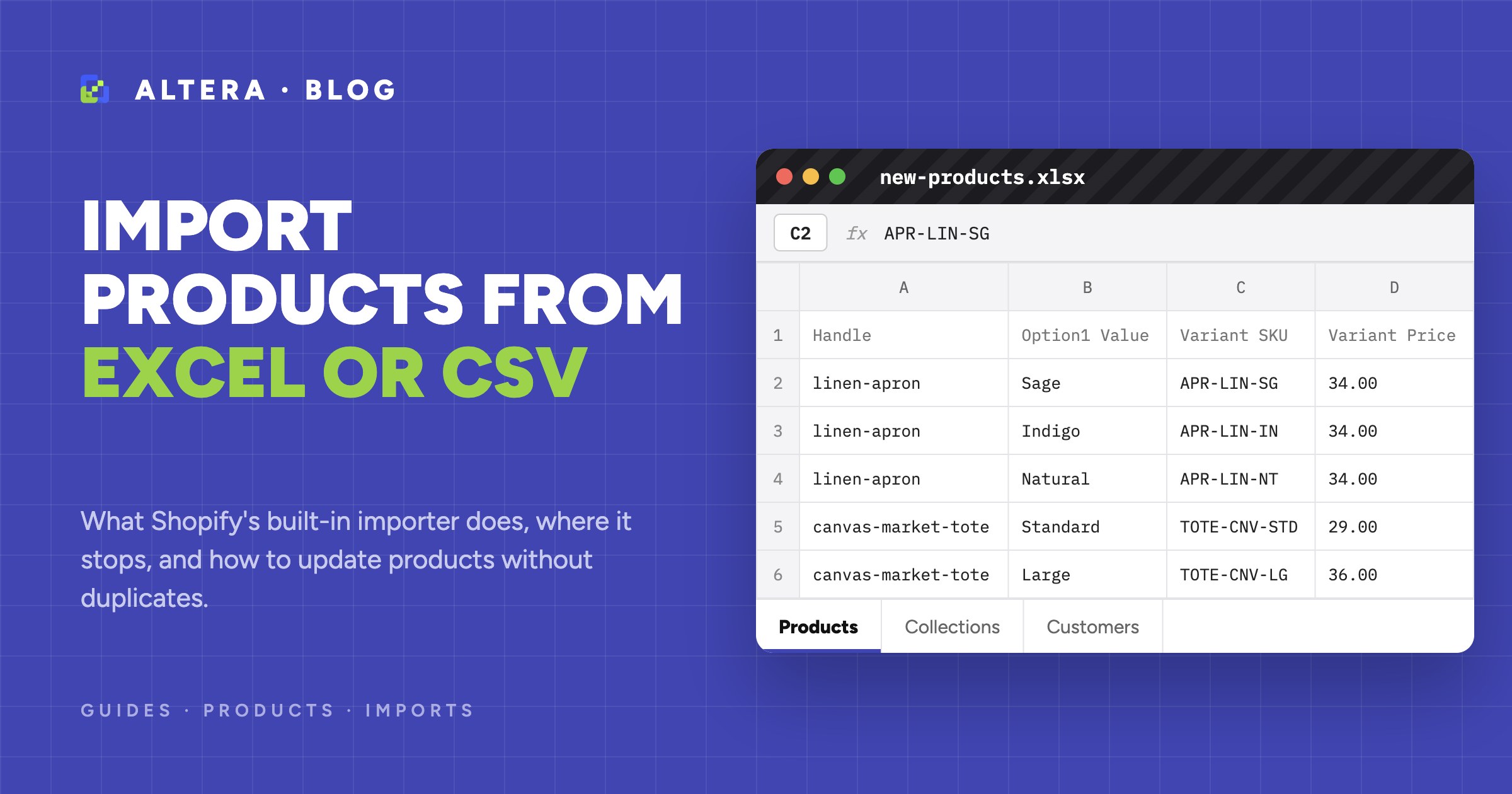
You have a spreadsheet of products. Maybe it is a supplier price list, a catalog from another platform, or an export you edited by hand. Now it has to go into Shopify.
The short answer: Shopify’s built-in CSV importer is fine for a simple first upload of new products. Use an import app when your file is in Excel, when you need to update products that already exist, or when the file holds data that the Shopify CSV template does not.
This guide covers both. First what the built-in importer does and where it stops, then how to update existing products without creating duplicates, then a walkthrough with a small sample file.
The built-in Shopify product importer#
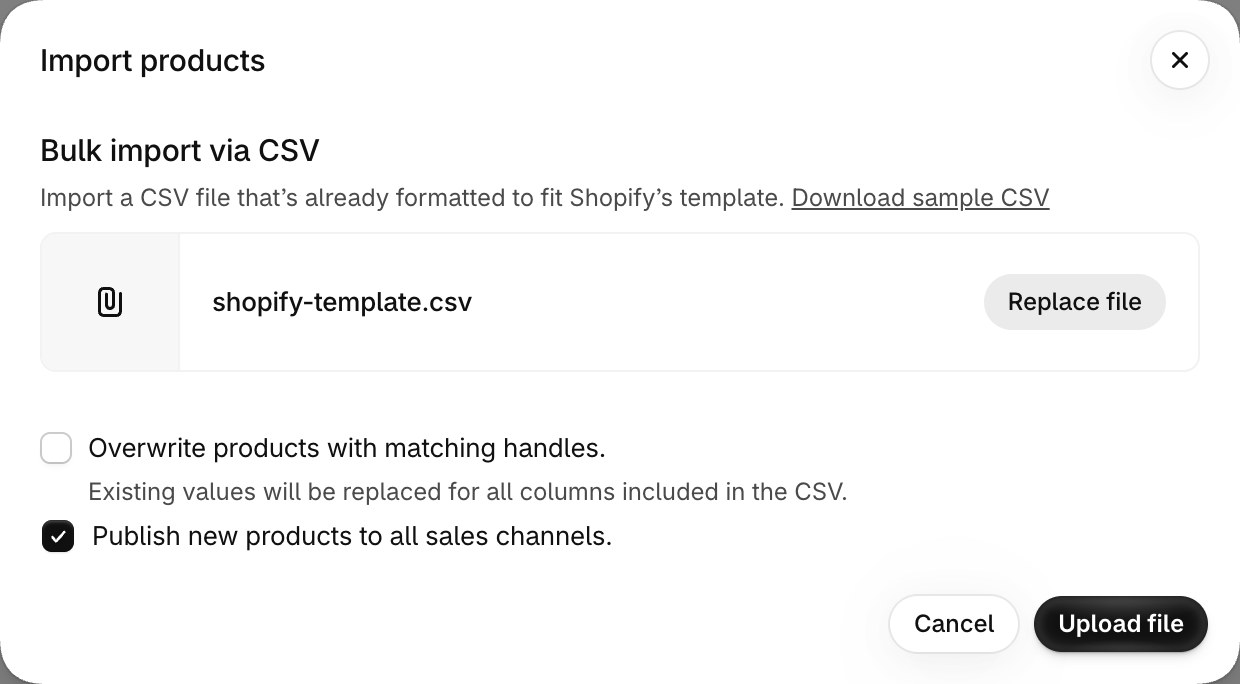
Shopify has a product importer under Products > Import. You download Shopify’s sample CSV, fill it in, upload it, check a preview of the first product, and click Import products.
How the file works:
- One row per variant. The first row of a product holds the product fields (title, description, vendor, tags) and the first variant. Each other variant gets its own row with the same
URL handleand the product fields left blank. - Products are matched by handle. A row whose handle is already in your store belongs to that existing product.
- Overwrite is a checkbox. With Overwrite products with matching handles unchecked, rows that match an existing handle are ignored. With it checked, every column in the file replaces the existing value, and a blank cell in a non-required column sets that value to blank.
- Images come from URLs. Each image needs its own row and a public
https://link.
According to Shopify’s help center, the importer also has these limits:
- CSV only. The file must be a UTF-8 CSV of 15 MB or less, with headers that match the template exactly. You can edit in Excel, but you upload a CSV.
- Handle is the only key. Rows are matched to existing products by URL handle. There is no option to match by SKU, barcode, or product ID.
- Inventory for one location. The
Inventory quantitycolumn is for stores with a single location. For several locations, Shopify sends you to a separate inventory CSV. - Product metafields only. The template takes product metafields of the supported types, not variant metafields.
- Market prices in some cases. Market price columns are only available for a market with exactly one catalog of its own.
- No undo, no history. A started import can’t be canceled, and you can’t open the results of past imports.
- Variant options are fragile. If you update variant columns without
Option1 nameandOption1 value, Shopify creates a new default variant and deletes the existing ones. Changing option values gives the variants new IDs.
For 50 new products from a clean template, none of this matters. For a supplier file or a catalog update, most of it does.
When to use an import app instead#
Use an app when one of these is true:
- Your file is an Excel workbook, or one workbook with several sheets (products, collections, customers).
- You update products that already exist, and you want to match them by product ID, SKU, or barcode instead of handle.
- Your catalog is large. Altera takes CSV and zip files up to 1 GB and Excel files up to 250 MB.
- You need stock at several locations, with one
Inventory Available: [Location]column per location. - You need variant metafields, metaobjects, or market prices for markets that share a catalog.
- The file arrives on a schedule, from an FTP or SFTP server, a URL, or a Google Sheet.
- You need a result for every row, so you can see which rows changed something and which failed, and why.
Altera does all of the above. It reads Excel and CSV files in the same format that Matrixify uses, so files from either app work in the other without changes. Other apps cover parts of this list. If you only edit a few fields across many products in the Shopify admin, an in-app editor such as Ablestar Bulk Product Editor can be faster than a spreadsheet.
How to update existing products without creating duplicates#
Duplicate products are a common result of a product import. They happen when the importer can’t find the product you meant, so it creates a new one. The fix is to tell the importer exactly which column identifies the product.
Altera checks the identifier columns in your file in this order:
| Your file has | Altera finds the product by |
|---|---|
| A column that ends in [ID] | That column only |
| ID, Handle, or Title | ID, then Handle, then Title |
| Only variant columns, such as Variant ID or Variant SKU | Variant ID, then Variant SKU |
| Only Variant Barcode | Variant Barcode |
Three rules prevent most duplicates:
- Pick one identifier. The product
IDis the safest, because it never changes. For supplier files, use the SKU and name the columnVariant SKU [ID]. The[ID]suffix tells Altera to match by that column only, with no fallback to the title. - Use the right command. The
Commandcolumn decides what happens when no product matches.MERGEcreates a new product,UPDATEskips the row and reports it, andREPLACEdeletes the product and creates it again from your file. For updates, useMERGEorUPDATE. KeepREPLACEfor when you want to rebuild a product. - Include only the columns you change. A price update needs the identifier and the price, nothing else. Some blank cells clear a value (for example
Variant SKU,Variant Barcode, andVariant Compare At Price), so an extra empty column can delete data.
A price and stock update from a supplier, matched by SKU:
| Variant SKU [ID] | Variant Price | Variant Compare At Price | Inventory Available: East Coast Warehouse |
|---|---|---|---|
| APR-LIN-SG | 29.00 | 34.00 | 20 |
| APR-LIN-IN | 29.00 | 34.00 | 15 |
| TOTE-CNV-STD | 24.00 | 29.00 | 35 |
| TOTE-CNV-XL | 39.00 | 5 |
If an SKU in the file is not in your store, that row fails and nothing is created. Suppliers often list products you don’t stock, so this is what you want. For the full matching rules, see How imports find existing Shopify products and How to bulk update Shopify products by SKU.
Walkthrough: import products from an Excel file with Altera#
This example creates two products with variants from an .xlsx file, then updates their prices and stock from the CSV above.
1. Prepare the file#
Put each product on one or more rows, one row per variant, with a Handle that groups the rows. Fill the product fields on the first row only.
| Handle | Title | Option1 Name | Option1 Value | Variant SKU | Variant Price |
|---|---|---|---|---|---|
| linen-apron | Linen Apron | Color | Sage | APR-LIN-SG | 34.00 |
| linen-apron | Color | Indigo | APR-LIN-IN | 34.00 | |
| linen-apron | Color | Natural | APR-LIN-NT | 34.00 | |
| canvas-market-tote | Canvas Market Tote | Size | Standard | TOTE-CNV-STD | 29.00 |
| canvas-market-tote | Size | Large | TOTE-CNV-LG | 36.00 |
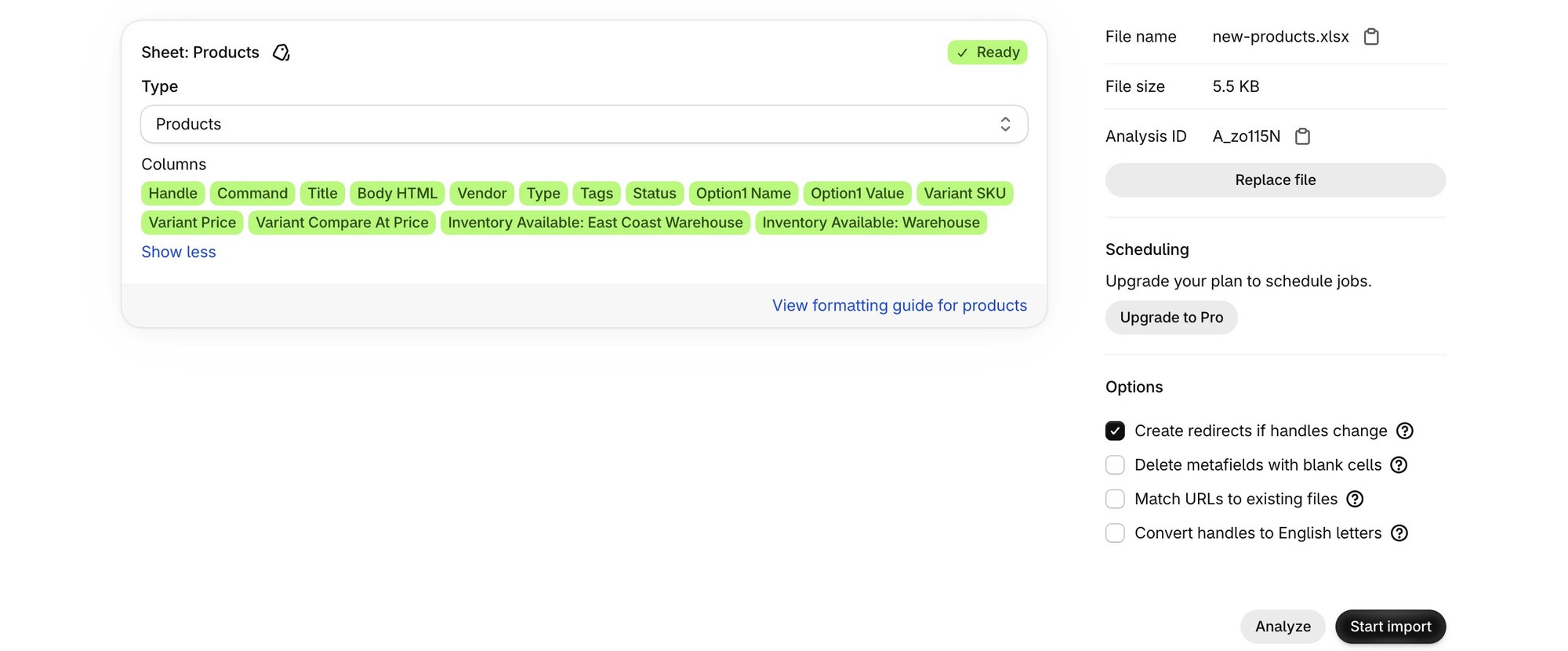
The sample file has more columns than this table: Command set to MERGE on every row, Body HTML, Vendor, Type, Tags, and Status on the first row of each product, and stock columns for two locations, Inventory Available: Warehouse and Inventory Available: East Coast Warehouse.
The column names are listed in the Product fields reference. Replace Warehouse and East Coast Warehouse with the names of locations in your store (Settings > Locations).
2. Upload the file and check the analysis#
In Altera, upload the file from the home page. Altera reads each sheet, detects the data type, and shows each column it recognizes in green. A column it doesn’t recognize shows in yellow, so you can fix a typo in a header before anything changes in your store.
3. Start the import and read the results#
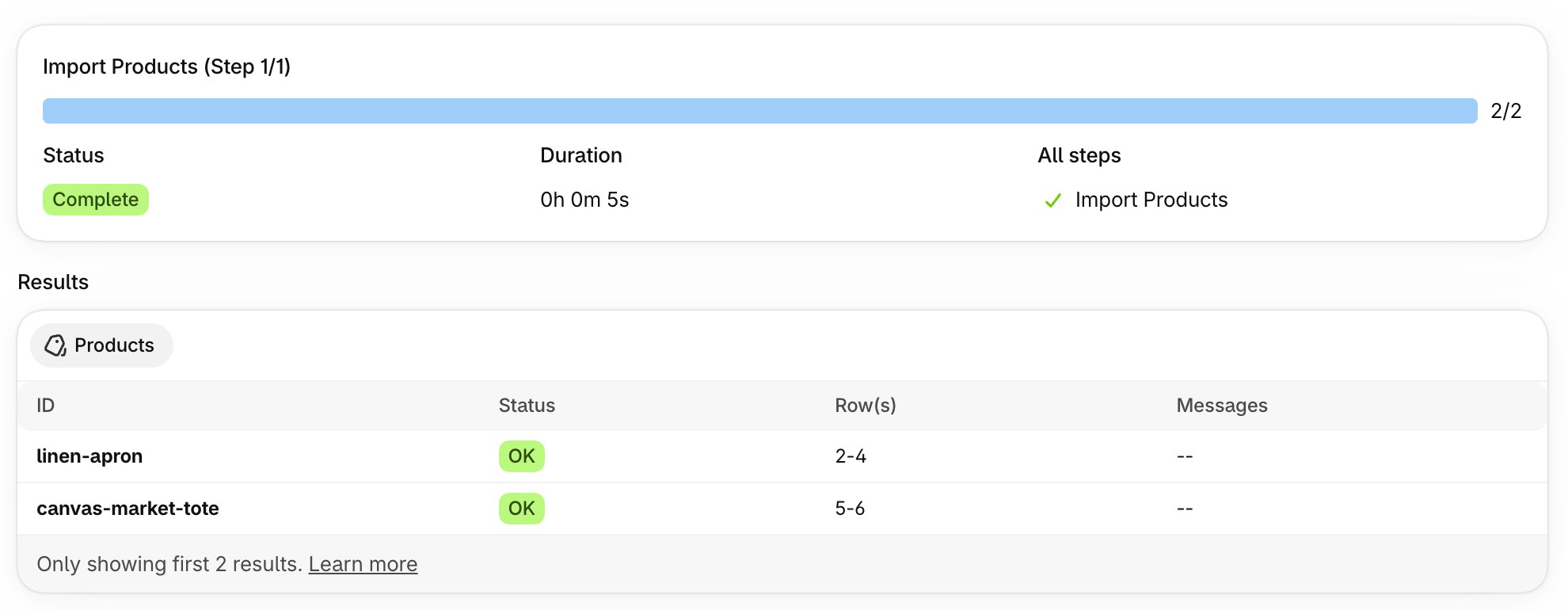
Click Start import. When the job is done, the results show each product, the rows it came from, and any messages. The output file is your spreadsheet with an extra result column for every row.
4. Update the same products by SKU#
Now upload the price update CSV from the previous section. It has no handle or title, only the SKU, so Altera finds each variant by its SKU and changes only the price, compare-at price, and stock.
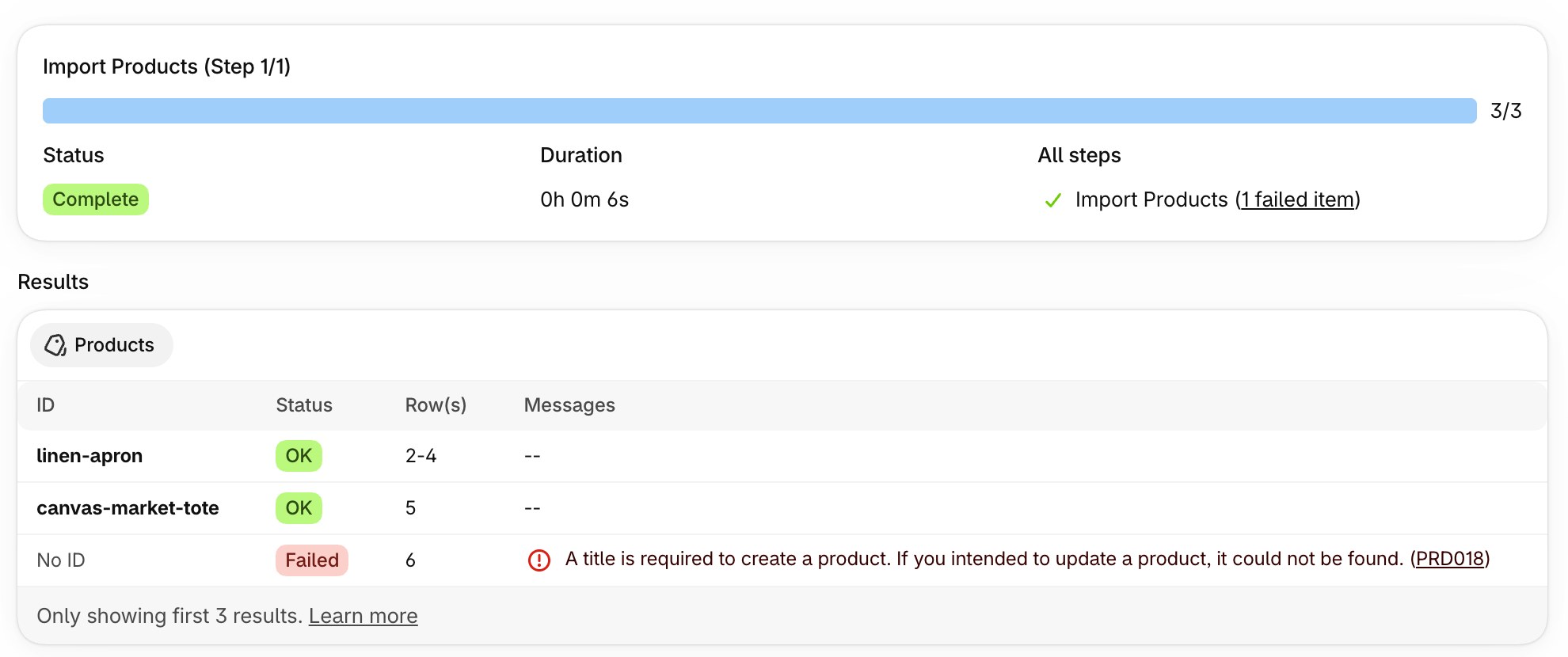
The failed row is the SKU TOTE-CNV-XL, which is not in the store. With the built-in importer, a row that doesn’t match an existing handle becomes a new product. Here it is a failed row in the results that you can check.
Before you run an import on a live store, export the products you are about to change as a backup, and test with one or two rows first. The Import best practices article has a checklist.
Common errors and fixes#
Strange characters such as é in titles. The CSV was not saved as UTF-8. Save it again as “CSV UTF-8” in Excel, or upload the .xlsx file and skip the CSV step.
Long numbers changed to 9.10453E+12. Excel shows product IDs and barcodes in scientific notation, and saving a CSV in that form changes the value. Format those columns as text, or upload the .xlsx file.
Variants deleted or duplicated. Each variant row needs its option name and value. In the Shopify CSV, leaving out Option1 name and Option1 value replaces the variants with one default variant.
Images don’t import. Image URLs must be public https:// links without a password. A link to a private Google Drive file or a staging site doesn’t work.
The import created duplicate products. The identifier didn’t match. This happens when you match by title and the titles differ, or when a handle changed after the export. Delete the duplicates, then import again with an ID column or a Variant SKU [ID] column and the UPDATE command.
A row fails with “More than one product matches”. The same SKU is on more than one product in your store. Make the SKUs unique, or identify those rows by ID or Handle.
FAQ#
Can I import products from Excel to Shopify?#
Not with the built-in importer, which takes only CSV files. You can save an Excel sheet as a CSV in Shopify’s template, or use an import app such as Altera that reads .xlsx files directly, including workbooks with several sheets.
How do I update products in Shopify without creating duplicates?#
Identify each product with a column that can’t be misread: the product ID, or the SKU in a Variant SKU [ID] column. Set the Command to UPDATE so a row that doesn’t match is skipped instead of created. With the built-in importer, check Overwrite products with matching handles and keep the handles unchanged.
Can I bulk update prices in Shopify from a spreadsheet by SKU?#
Yes, with an import app. The built-in importer only matches by handle. In Altera, a file with Variant SKU [ID] and Variant Price columns updates the price of each variant with that SKU and leaves everything else as it is.
What is the best app to import products from a CSV or Excel file?#
It depends on the job. For a first upload of a simple catalog, the built-in importer is enough. For updates by SKU or ID, Excel files, stock at several locations, metafields, market prices, scheduled imports, or a result for every row, use an import and export app. Altera does all of these, reads Matrixify-format files without changes, and has free plans. Altera Pro is $15 a month.
How many products can I import at once?#
The built-in importer takes CSV files of up to 15 MB. Altera takes CSV and zip files up to 1 GB and Excel files up to 250 MB, with no row limit on the Developer and Pro plans.