
The product catalogue is the part of a WooCommerce to Shopify migration that goes wrong most often. Titles and prices are easy. The trouble is in the structure: variable products that have to become Shopify variants, custom fields that have no native Shopify home, and descriptions full of WordPress shortcodes that look fine in WooCommerce and break in Shopify.
This guide covers the products, and only the products. It is one piece of the larger WooCommerce to Shopify migration guide, which walks through the whole store (orders, customers, redirects, and the rest). Here we go deep on the catalogue.
There are two ways to move products across. We cover both, then spend most of the guide on the parts that need a human eye.
Two ways to move the catalogue#
Export a CSV from WooCommerce, then reformat it. WooCommerce has a built-in product CSV exporter under Products, then Export. It gives you a file, but it is in WooCommerce’s column layout, not Shopify’s. You then remap every column by hand: WooCommerce’s parent and variation rows into Shopify’s option and variant structure, image columns into Image Src and Variant Image, attributes into something Shopify can read. For a small catalogue this is workable. For a few hundred variable products it is slow and easy to get wrong.
Connect directly with Altera. Altera reads your WooCommerce store over its REST API and writes the catalogue straight into the standard Shopify import format, with the variant structure already worked out. You get a spreadsheet to review before anything reaches Shopify. The rest of this guide assumes this path, because the manual reformat is the same set of decisions done by hand.
Either way, the data work is the same. The questions below (how a variable product maps, what to do with shortcodes, where attributes land) apply whether you remap by hand or let Altera do it.
What transfers cleanly#
These fields map one to one onto Shopify’s product columns, and you should expect them to come across without intervention:
- Title (
Title) and description (Body (HTML)) - Price and compare-at price (
Variant Price,Variant Compare At Price) - Product images (
Image Src,Image Position) - SKU (
Variant SKU) - Inventory quantity (
Variant Inventory Qty) - Weight (
Variant Grams/Variant Weight) - Vendor and product type (
Vendor,Type) - SEO title and meta description (
SEO Title,SEO Description)
A simple product (one price, one SKU, no variations) becomes a single row in the Products sheet, with the handle generated from the product slug so its URL stays predictable.
Variable products become Shopify variants#
This is the conversion that matters. WooCommerce and Shopify model variations differently, and the mapping has rules.
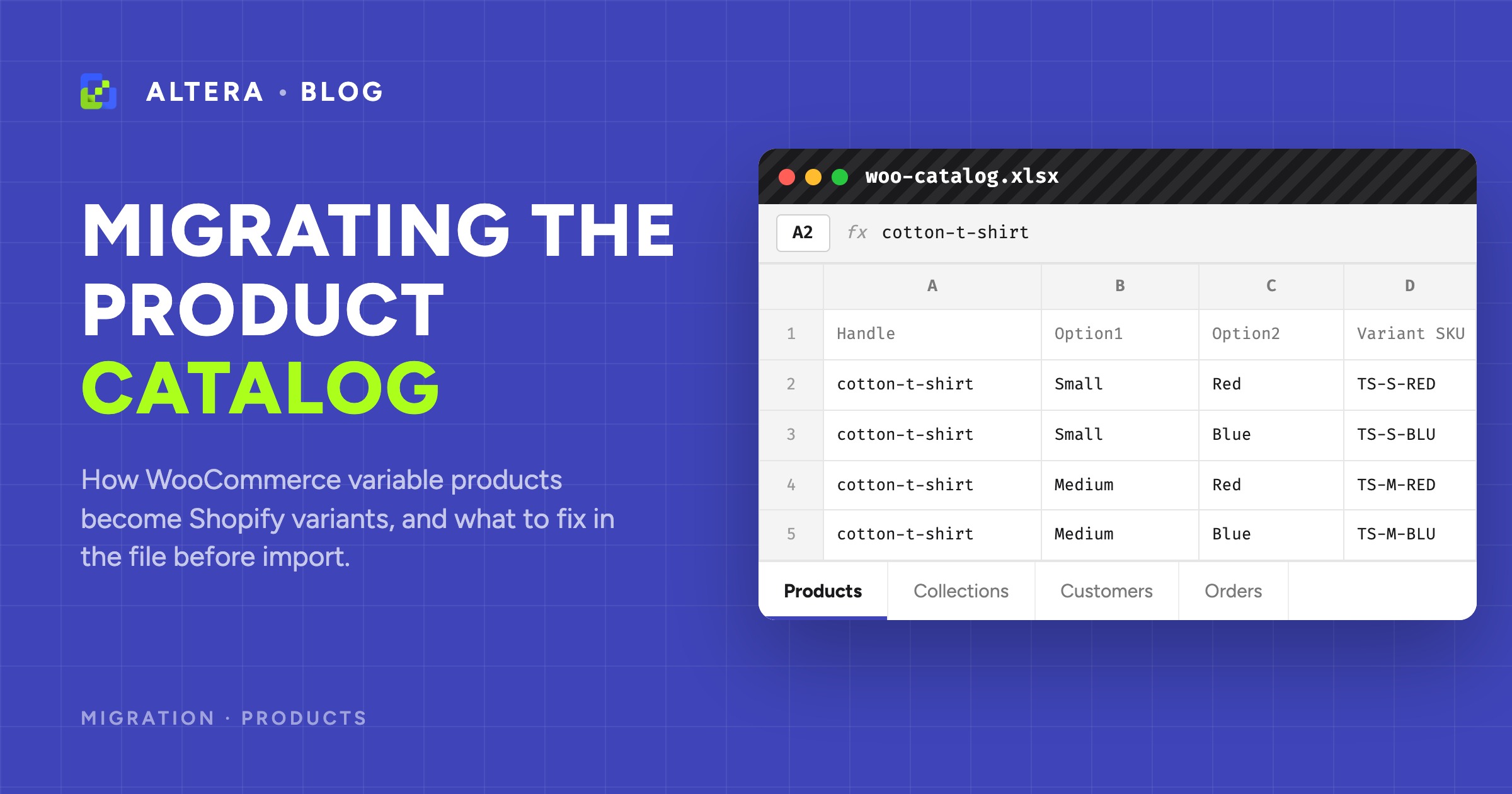
In WooCommerce, a variable product is a parent post plus one child post per variation. A T-shirt is one parent (“Cotton T-Shirt”) with child variations for Small/Red, Small/Blue, Medium/Red, and so on. The attributes (Size, Colour) live on the parent; the price, SKU, and stock live on the children.
In Shopify, that same T-shirt is one product with up to three options and one row per variant. Altera does the join: it reads the parent and its children and writes them out as a single product, with one row per variation.
| Handle | Title | Option1 Name | Option1 Value | Option2 Name | Option2 Value | Variant SKU | Variant Price |
|---|---|---|---|---|---|---|---|
| cotton-t-shirt | Cotton T-Shirt | Size | Small | Colour | Red | TS-S-RED | 19.00 |
| cotton-t-shirt | Size | Small | Colour | Blue | TS-S-BLU | 19.00 | |
| cotton-t-shirt | Size | Medium | Colour | Red | TS-M-RED | 19.00 |
The first row carries the product-level fields (title, body, vendor). Every other row repeats the handle, leaves the product-level fields blank, and adds one more variant. This is the standard Shopify import structure, and it is how Shopify itself models a multi-variant product.
Two limits are worth knowing before you start, because they are Shopify’s, not the tool’s:
- Three options maximum. Shopify allows up to three options per product (for example Size, Colour, Material). A WooCommerce product with four or more attributes used as variation axes will not fit. Decide before import which attributes are real variants and which should become tags or metafields instead.
- 2048 variants maximum. A product with more variant combinations than Shopify allows has to be split or trimmed.
Most catalogues sit well inside both limits. The ones that do not are usually products where an attribute that should be a filterable property (a material note, a care instruction) was set up as a variation axis in WooCommerce. The review step is where you catch that.
Variant images#
A WooCommerce variation can carry its own image, separate from the parent gallery. That maps to Shopify’s Variant Image column, so the right photo shows when a shopper picks Small/Blue. The parent gallery images go into Image Src across the product’s rows. After import, spot-check a variable product and confirm the per-variant images attached to the correct variants rather than collapsing into the main gallery.

Custom fields and attributes become metafields#
WooCommerce stores hold more than Shopify’s native fields cover: ACF fields, post meta, plugin data, and product attributes that are not variation axes. Altera does not drop that data. It carries it across as Shopify metafield values in a woo namespace, so nothing is silently lost:
- Product meta and custom fields land in
Metafield: woo.<key>columns. - Variant-level meta lands in
Variant Metafield: woo.<key>columns. - WooCommerce attributes that are not used as variants land in
Metafield: woo_attribute.<name>columns.
One thing to be clear about: this brings the values across, not typed metafield definitions. The data arrives as untyped metafields in the woo namespace. If you want these to be proper structured metafields (a real “Material” definition shoppers can filter on, a rich-text care guide), you set up the matching metafield definitions on the Shopify side and point them at the same namespace and key. That is a deliberate step, and it is covered in the custom fields to metafields part of the migration. For the product import itself, the values are preserved and waiting.
What needs cleanup in the spreadsheet#
The review step is the point of the whole approach. Open the Products sheet in Excel or Google Sheets and look for these before you import.
Shortcodes in descriptions#
WooCommerce descriptions often contain WordPress shortcodes: [product_page id="99"], [su_button], layout shortcodes from a page builder, tab shortcodes from a reviews or specs plugin. WooCommerce renders these because WordPress is there to interpret them. Shopify is not. The shortcode text passes through into Body (HTML) verbatim, and on Shopify it shows up as literal [bracketed] text in the middle of your product copy.
These are not stripped or converted automatically. You clean them in the spreadsheet. The fastest way:
- In the Products sheet, search the
Body (HTML)column for[. - For each hit, decide: delete the shortcode, or replace it with the plain HTML it was producing (a button becomes an
<a>link, a tabbed spec block becomes a list). - Save.
Doing this in the file, before import, means you fix it once across the whole catalogue instead of editing live products one at a time in the Shopify admin afterward.

Duplicate SKUs#
WooCommerce does not enforce unique SKUs as strictly as a clean Shopify catalogue wants. Sort the Variant SKU column and look for duplicates, especially across variable products that were copied from each other. Two variants sharing a SKU will cause inventory to behave unexpectedly after import.
Variant naming#
Check the Option1 Name and Option2 Name values are consistent. WooCommerce lets the same concept be spelled “Color” on one product and “Colour” on another, or “Size” and “size”. Shopify treats those as different options. A find-and-replace in the file normalises them before they become permanent.
Images embedded in descriptions#
Main product images come across in the Image Src and Variant Image columns. Images that were dropped inside a description (in the HTML body, not the product gallery) are handled separately. Altera packages them into an Images ZIP. Before you import the products, unzip it and upload those images to Shopify under Content, then Files, so they live on Shopify’s CDN. Once they are hosted there, the descriptions that reference them resolve instead of pointing back at your old WooCommerce server. The main migration guide covers this step in full.
Run the import#
When the Products sheet looks right, import it. Altera reads the file and may show warnings, usually a note that some columns (the woo metafield columns) are not standard Shopify fields. That is expected; those are your carried-over attributes. The review step plus this file analysis is the safety check before anything is written. Acknowledge the warnings and run the import.
If you are moving the whole store rather than products alone, import the products before the collections, customers, and orders that reference them. A single multi-sheet file handles that ordering for you, products first. The migration guide explains the dependency order.
After import: what to verify#
A short pass before you trust the catalogue:
- Counts. Compare the product and variant totals against WooCommerce. A large gap usually means a variable product was flattened (variants lost) or split (one product became several).
- A few variable products. Open three or four and confirm every variant came across with the right SKU, price, and image.
- Images. Confirm gallery images loaded and that any images that were inside descriptions now resolve from the Shopify CDN.
- SEO fields. Confirm
SEO TitleandSEO Descriptioncarried over, so you do not lose the metadata search engines already indexed. - Metafields. Spot-check a product that had custom fields and confirm the
woo.*values are present.
Fix anything off in the file and re-import that product before you go live, while WooCommerce is still your source of truth.
Where this fits#
Products are the foundation of the migration, but they are one sheet of several. Once the catalogue is across, the related moves are the redirect map that keeps your product URLs ranking, the order history that references these products, and the full WooCommerce to Shopify migration guide that sequences the whole thing.