
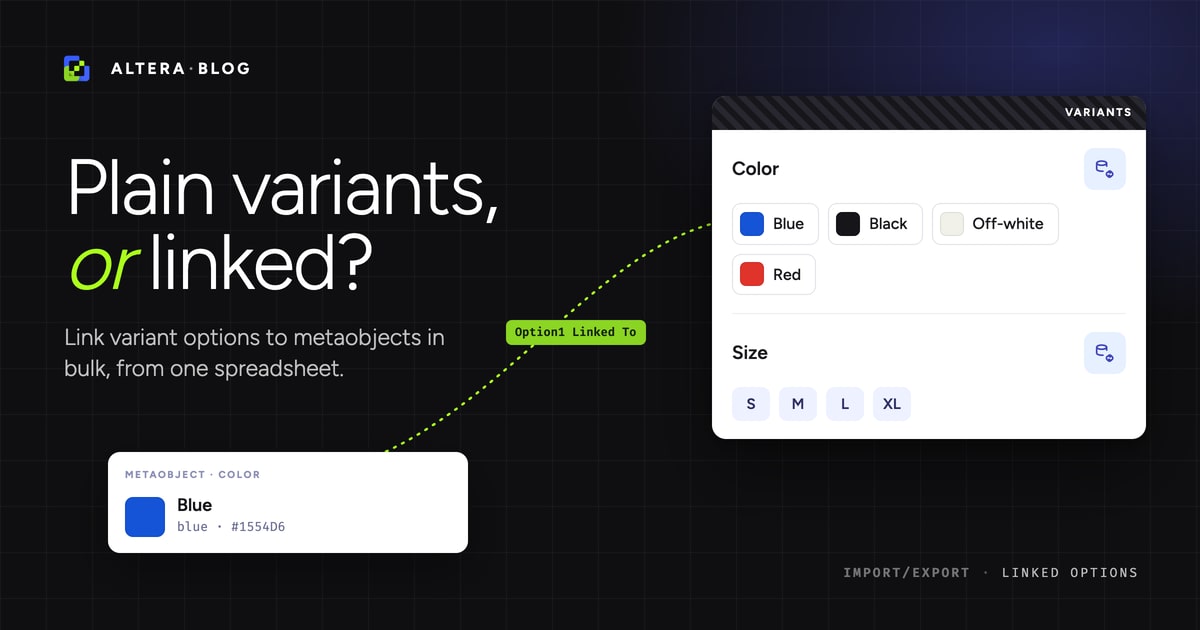
If you’ve added color swatches or standardized materials to your Shopify products, you’ve used linked variant options, whether you knew the term or not. The Shopify admin calls it connecting a variant option to a category metafield. Instead of a plain-text option value like “Black”, the option points at a metaobject entry that carries structured data: a color code, a swatch image, a taxonomy reference. The option becomes a reference to a single source of truth for all “Black” variants and you can update it from a single place.
Setting that up one product at a time in the Shopify admin is fine for a handful of products. For hundreds or thousands, you need a spreadsheet. The question comes up on the Shopify Community as “how do I link the Color option to the color metafield on all my products” or “how do I automatically assign category metafields to products”, and the usual answers are the GraphQL API or doing it by hand. This is where the tool you reach for decides whether the job is possible at all.
What linked variant options are#
A linked variant option has three parts:
- Metaobject entries hold the structured values. A “Color” metaobject might have entries like “Ocean Blue” (with a hex code and a swatch image) and “Graphite.”
- A product metafield of type
list.metaobject_referenceconnects the product to those metaobject entries. - The product option (for example, “Color”) is linked to that metafield, so its values come from the metaobject entries instead of free text.
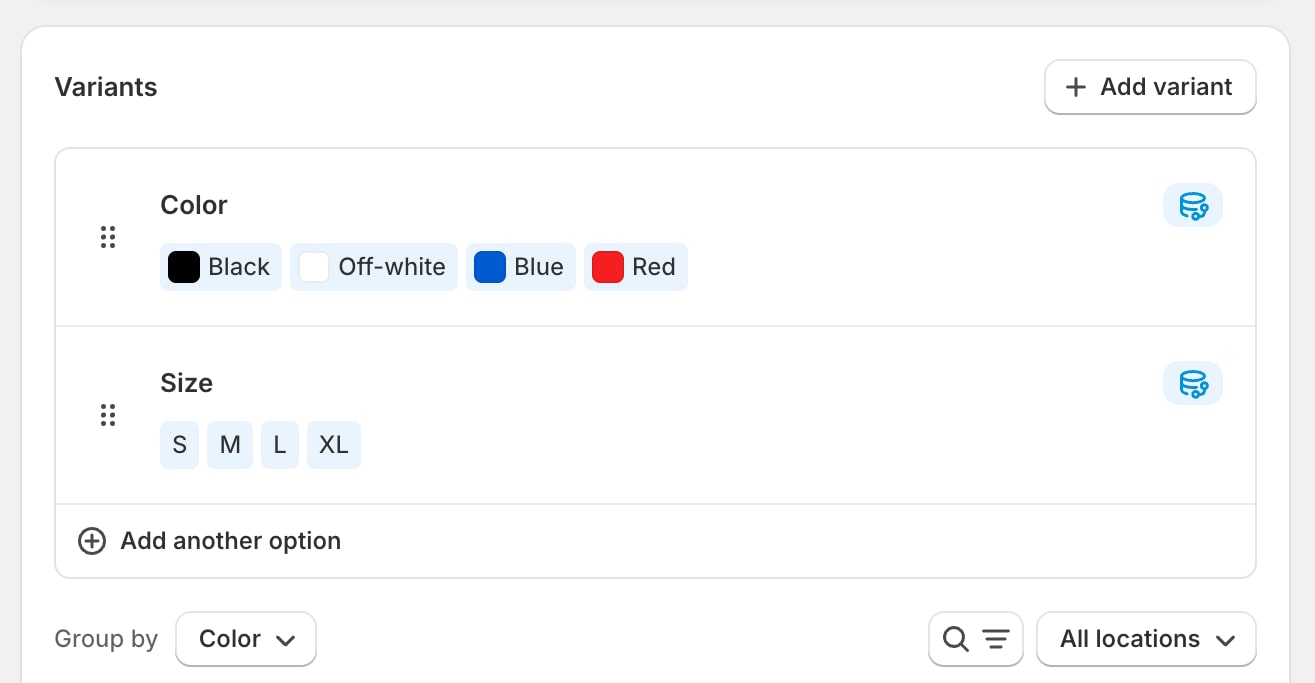
In the Shopify admin, a linked option shows the category metafield or metaobject definition as its connected source, and its values as swatches with a metaobject-link marker instead of plain text. An option that has not been linked shows “No connected source”.
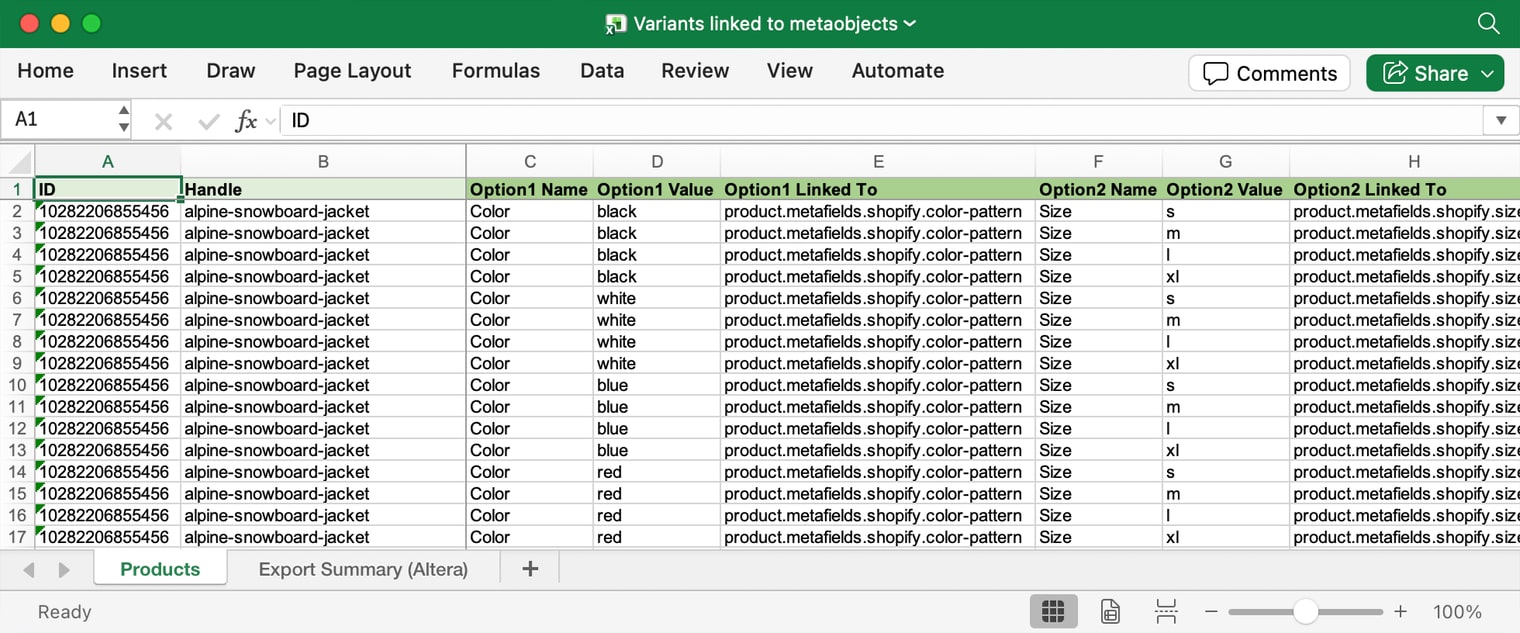
In a spreadsheet, the thing that controls all of this is a single column: Option1 Linked To (and Option2 Linked To, Option3 Linked To for the second and third options). Shopify’s CSV documentation spells it Option1 LinkedTo, and Shopify’s developer docs call the whole feature metafield-linked product options. Same column, same feature. Set a value there and the option stops being plain text and becomes a reference.
The catch: each tool gets you part of the way#
Here’s the part that surprises people. The one feature native Shopify CSV has, Matrixify doesn’t, and the reverse is true for almost everything else.
- Shopify’s native CSV import/export does include the
Option1 Linked Tocolumn, so you can technically bulk-edit linked options with it. But it has significant gaps elsewhere: no variant metafields, no progress tracking, no way to view results, and it’s easy to delete data by accident. The one that matters most here: variant IDs can change when you change option values, which detaches inventory, history, and anything else keyed to the original variant. - Matrixify is broad and flexible across most of the Shopify catalog, but it does not support
Option1 Linked Toat all. The column you need for linked options isn’t there.
So merchants get stuck choosing. Use native CSV and you can touch linked options, but you give up the coverage and the safety that made you use a real import/export tool in the first place. Use Matrixify and you keep the coverage, but linked options are off the table.
- Altera is the one place you get both. It reads and writes Matrixify-compatible spreadsheets, supports
Option1/2/3 Linked To, and preserves existing variant IDs through the conversion, so no other variant data is lost.
How it works in the spreadsheet#
The export is the place to start, because it gives you a correctly shaped file to edit instead of a blank sheet.
Exporting linked options#
Export your products and select only the fields you need. For linked options that means the general fields you want for reference (ID, Handle, Title) plus the variant fields: Variant ID, Option1 Name, Option1 Value, and Option1 Linked To (repeat for Option2 and Option3 if you use them). Keeping the field list minimal makes the later import faster and avoids overwriting data you didn’t mean to touch.
The exported file shows you exactly what a linked option looks like: the option value sits in Option1 Value, and Option1 Linked To holds the metafield that the option points at. If you’ve never set one up, exporting one product you linked by hand in the admin is the fastest way to see the correct values to copy.
What goes in the Option1 Linked To column#
The value is the product metafield definition that connects the option to its metaobject type, written in full as product.metafields.{namespace}.{key}. Two common shapes:
product.metafields.shopify.color-pattern   # a standard category metafield
product.metafields.custom.product_color    # your own metafield definition
Always write the full form. A bare custom.product_color is not recognised and the option stays plain text. For Shopify’s standard category metafields, you can find the exact key in the admin under Settings, Metafields and metaobjects, Products, in the category attributes. For your own metaobjects, use a metafield definition that links to a list of those metaobjects. You are not restricted to Shopify’s standard color and size metaobjects.
How option values resolve#
Option values in your spreadsheet use metaobject handles, and Altera resolves those handles to Shopify’s internal IDs during import. You don’t manage IDs by hand.
The one place to be careful: the handle is not always the display label. If a metaobject entry displays as “Stealth Black” but its handle is stealth-black (or anything else), put the handle in the option value, not the label. For standard colors like “Black,” the handle usually matches, so the value works as-is.
The category requirement#
Standard category metaobjects (Shopify’s built-in Color, Size, and similar) can only be assigned to products in a category that has those attributes. A jacket or t-shirt can link to the standard Color metaobject; a product in a category without color attributes can’t. If a link fails for a standard category metaobject, the product’s category is the first thing to check. Custom metaobjects you define yourself don’t carry this restriction.
Importing#
Save the edited file and import it. Altera analyzes the file, you confirm it looks right, and the conversion runs across every product in the file at once. Existing variants are converted in place, so the variant IDs and everything keyed to them stay intact. There’s no need to recreate variants or open each product in the admin.
Why the export side matters too#
Importing is only half of it. Because Altera exports Option1 Linked To as well, you can pull your whole catalog into a sheet to audit which options are linked and which are still plain text, or to move products with their linked options between stores. Matrixify drops the metaobject connection on the way out, so a migration done with it loses the links. With Altera the link travels with the product.
If the destination store doesn’t have the metaobject definitions yet, transfer those first with Altera’s metaobject definition import/export, import the entries, then import the products with their linked options.
The short version#
Native Shopify CSV gives you the Option1 Linked To column but has significant gaps elsewhere, and variant IDs can change when you change option values. Matrixify gives you broad, flexible coverage but not linked options. Altera gives you both, in the same Matrixify-compatible spreadsheets you already use, with variant IDs preserved.
For a deeper feature breakdown, see the Altera vs. Matrixify comparison or the dedicated linked product options page. There’s also a short walkthrough on YouTube if you’d like to watch the conversion run end to end.