
If you’ve ever tried to import metafields into Shopify with Matrixify or Altera, you already know the import itself isn’t the hard part. The hard part is getting the column headers and value formats exactly right. One wrong namespace, one off-format date, one mistyped measurement object, and the whole row fails.
The new metafield import template tool in Altera takes care of that for you. It downloads your store’s actual metafield definitions and produces a ready-to-use Excel file with every column laid out correctly, pre-filled with example values that show you exactly what each data type should look like. There’s a 3-minute walkthrough on YouTube if you want to see it before reading.
The tool is free and works on every Altera plan, including the free one.
Why a Matrixify metafields import is fiddly in the first place#
Shopify’s metafield system has a lot of moving parts. Every column header has to encode the namespace, key, and type in a specific shape:
Metafield: custom.material [single_line_text_field]
Variant Metafield: specs.weight [weight]
Get the namespace wrong and the column won’t bind to your existing definition. Get the type tag wrong and the import either fails or quietly creates a metafield-without-a-definition that doesn’t surface in the admin.
Then there’s the values. A dimension metafield isn’t a number, it’s a JSON object: {"value": 21.5, "unit": "centimeters"}. A color is a hex string starting with #. A list.product_reference is a JSON array of product handles. A category metafield uses sample values pulled from Shopify’s taxonomy. Dates are ISO, booleans are lowercase true/false, and measurements need the unit string spelled exactly the way Shopify expects.
None of this is hard once you know it. The problem is that the only way most people learn it is by submitting a broken import, reading the error, fixing it, and resubmitting. The metafield import template skips that loop.
How the template tool works#
In Altera, go to Tools in the left-hand menu and open Metafield import template. Click Generate template and Altera pulls every metafield definition in your store and writes them into an Excel file.
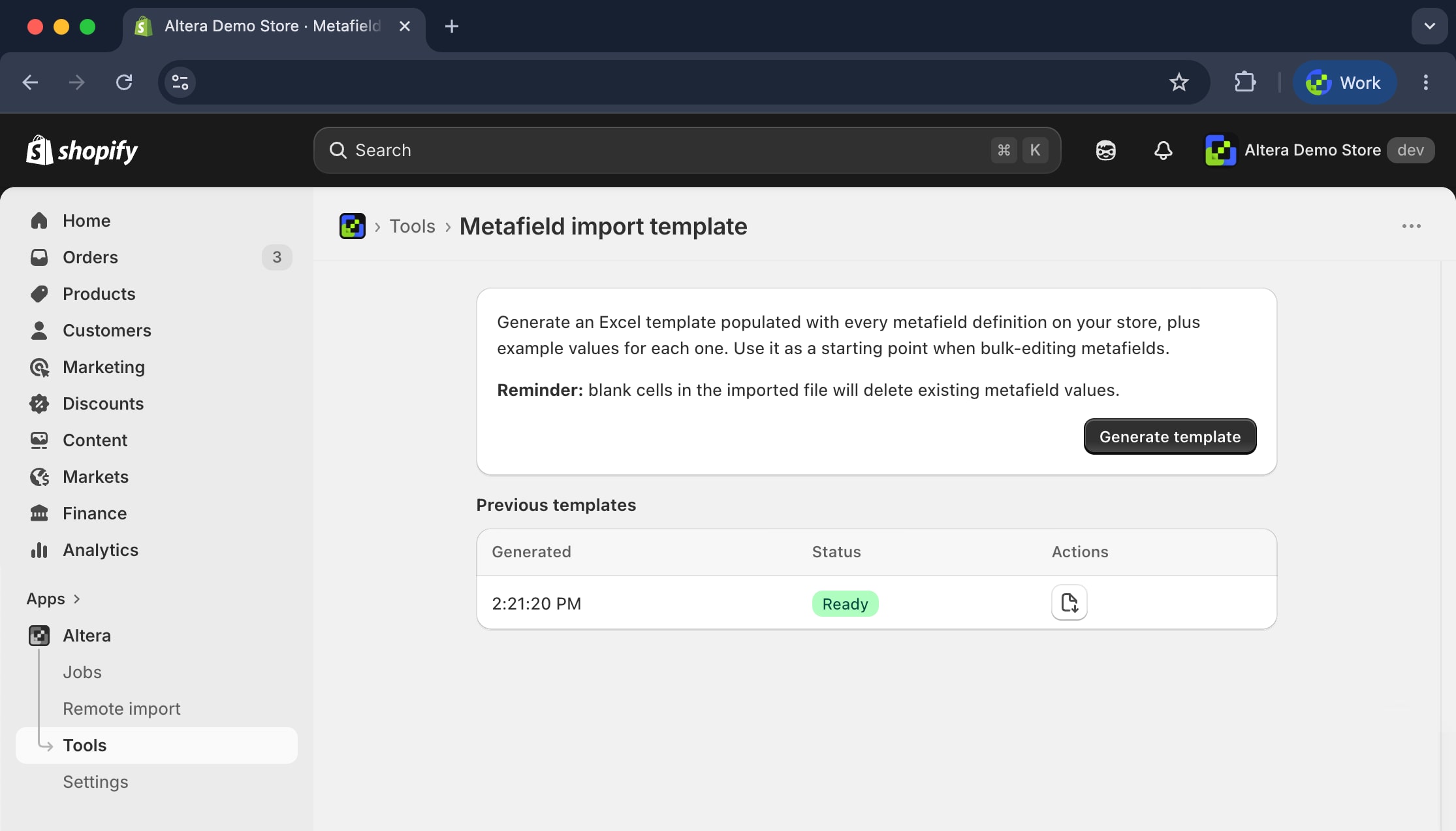
The file comes out with one tab per resource type that has metafield definitions on your store. So a typical product-heavy store gets tabs for Products, Smart Collections, Manual Collections, Customers, Orders, Draft Orders, Pages, Blog posts, Companies, Locations, and Markets. If you don’t have any customer metafield definitions, there’s no customer tab. The file only contains what’s actually defined.
What’s in each tab#
Open the Products tab and you’ll see one column for every product metafield definition on your store, plus every variant metafield definition appended at the end (variant metafields live on the product spreadsheet in Shopify’s import format, not on a separate tab). Each column header is in Altera’s exact import format:
Metafield: custom.material [single_line_text_field]
Metafield: custom.care_temperature [number_decimal]
Metafield: custom.featured [boolean]
Variant Metafield: specs.weight [weight]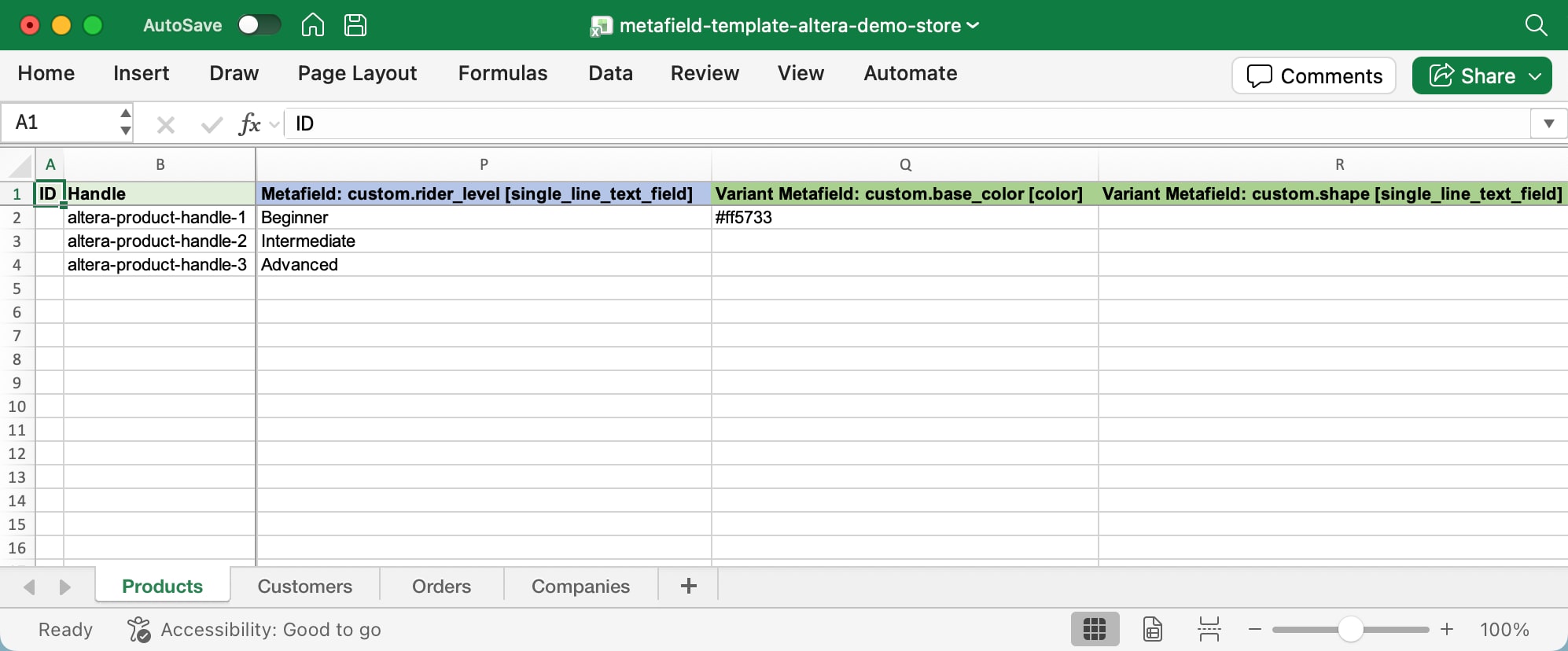
Metafield: namespace.key [type] header on every column.The example row in each column is filled in for you, and the example matches the type:
- Booleans are
trueorfalse - Dimensions, weights, volumes, and other measurements show both formats Altera accepts: the canonical JSON object
{"value": 21.5, "unit": "centimeters"}and a shorthand string like25mlor2.5kg. Pick whichever is easier to produce in your source data — both import the same way. - Category metafields use real sample values from your assigned product category, so you can see the format Shopify’s taxonomy expects.
- List-of-choices metafields (the ones where you defined a fixed list of allowed values) include the actual allowed values in the example, so you don’t have to dig through the definition in the admin to remember what they were.
- References (product, variant, collection, page, file, metaobject) use the handle-based format Altera prefers, which is portable between stores. No internal IDs.
- Rich text can be authored in whichever format is easiest: HTML, Markdown, or the JSON node format Shopify stores it as. The template shows examples of all three, and Altera converts on import.
- Google Shopping metafields are included with the same example treatment.
For order, customer, and other resource tabs, the same logic applies. Whatever definitions exist on that resource, you get a column for each, with a properly formatted example.
Using the template for an import#
Once you have the file, the workflow is the same as any Altera or Matrixify import:
- Replace the example rows with your real data. The example values are there to show you the format. Once you’ve copied the shape, swap them out for your actual content.
- Add a key column the import can match on. For products that’s usually
Handle,Variant SKU, orID. For orders it’sName. For customers it’sCustomer: Email. The template includes the columns you’ll need to identify each row. - Set
CommandtoMERGE(update only the columns in the file) orREPLACE(update everything) depending on what you want. - Save and import the file back through Altera, or through Matrixify if that’s what you’re using. The format is the same on both sides.
Yes, the file works in Matrixify#
The Altera metafield template uses the same Metafield: namespace.key [type] header convention that Matrixify uses, so a template generated in Altera imports cleanly through Matrixify and vice versa. If you’re a Matrixify customer who just wants the template, you can install Altera’s free plan, generate the file, and take it back to Matrixify for the actual import. There’s nothing in the file format that ties it to one tool.
The same is true in the other direction. If you’ve already built a Matrixify metafields spreadsheet, it works in Altera as-is. You don’t need to reshape anything.
Where this fits if you’re comparing tools#
Altera is a Matrixify alternative for Shopify imports and exports. The file format is compatible in both directions, and Altera covers a few data types Matrixify doesn’t: metafield definitions, metaobject definitions, translations and market adaptations, inventory transfers, and a handful of others. The metafield import template tool is one of the small things that makes the day-to-day work less painful, and it’s free to use on any plan.
If you want to try it, install Altera from the Shopify App Store, open Tools → Metafield import template, and click Generate template. The file will be ready in a few seconds.