
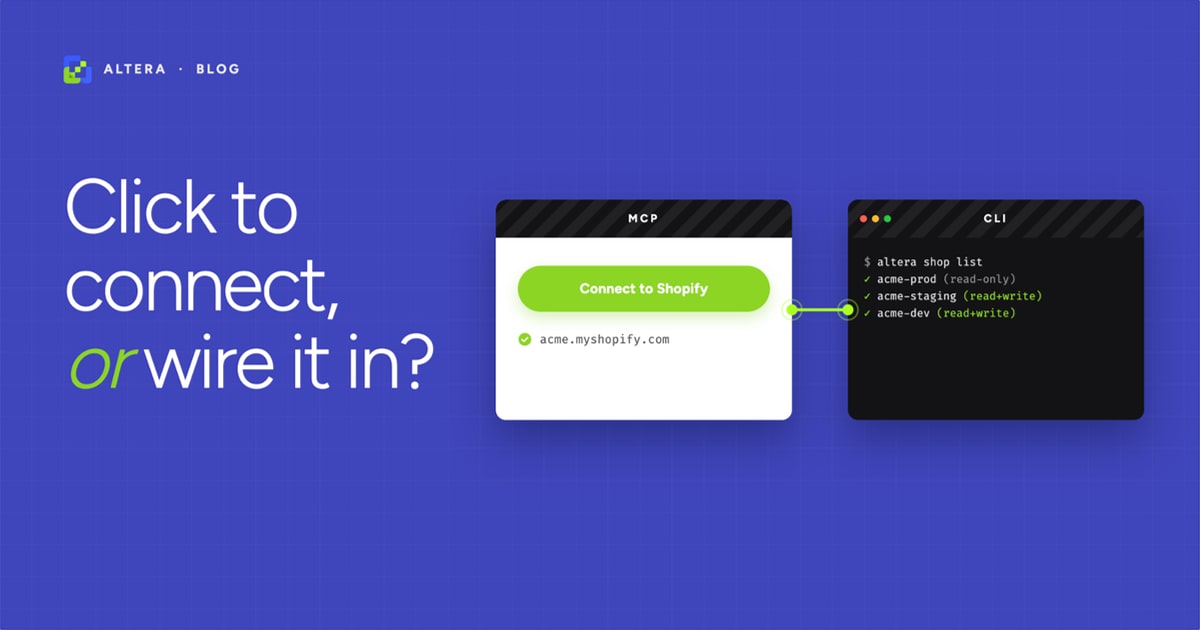
More than 80% of Shopify merchants are already using ChatGPT for some part of their day, and a smaller-but-growing group is on Claude. So the question isn’t whether your store is going to get touched by an AI agent, it’s how you want to wire it in. Altera offers two ways. One is the Altera MCP, which plugs straight into ChatGPT, Claude, or anything else that connects to outside tools. The other is the Altera CLI, which you run in a terminal and pair with a small instructions file your AI tool reads. Both work, but they’re built for different jobs. The right one depends mostly on how many shops you run and whether the agent is allowed near production.
Short version: the MCP is faster to set up, the CLI is more flexible. The longer version is below.
What each one actually is#
The Altera MCP#
The MCP is a one-click connection. You add it to ChatGPT or Claude, sign in to your Shopify store, and the AI can now list shops, run jobs, create exports, kick off imports, and download the result. Files come back as links the AI can fetch. Nothing to install on your machine. Setup is documented step by step in Connect Altera to ChatGPT or Claude.
ChatGPT is what most merchants are already using day to day, so for a lot of people this is the most natural way to give an AI access to their store. Claude works the same way if that’s your tool of choice.
The Altera CLI plus a skills file#
The CLI is a small program you run in a terminal as npx altera. You write a short markdown file (a SKILL.md, an AGENTS.md, a CLAUDE.md, whatever your tool reads) telling the AI the CLI exists and what commands to run. The AI then runs those commands itself. Each store gets its own API key stored in your local Altera config. There’s a short walkthrough video if you want to see the setup before doing it yourself.
This is the path for when “the agent” is Claude Code on your laptop, or Cursor in a repo, or anything else that can run shell commands. ChatGPT can drive the CLI too in a workspace with shell access, but most ChatGPT users will want the MCP.
What the MCP gets right#
You don’t have to handle a secret. You don’t generate or rotate a key, and you don’t paste anything into a config file. Click connect in ChatGPT (or Claude), and the agent has access. It’s hosted, so there’s no install, which is why it works from chatgpt.com, claude.ai, or any other web client without you setting anything up. Files come back as links so there’s no shuffling files around. And the AI sees the tool list automatically and figures out what it can do without you writing instructions.
For a single shop, single user, single session, the MCP is the right call. Setup time is measured in seconds. Especially good for a non-developer who just wants to poke around their data without learning a new tool.
Where the MCP runs out of room#
Three real limits worth knowing before you pick it.
One shop per connection#
The MCP connects to one Shopify store at a time. So if you have a production store and a staging store, and you want to copy metafield definitions from prod to staging in a single session, you can’t do that with the MCP today. You’d have to disconnect, reconnect to the other store, and start over. That usually means losing the AI’s working context for the first half of the job.
All-or-nothing access#
The MCP gives the agent the same access you have. There’s no read-only toggle, and no way to block writes to a specific shop. Either the agent can write to your store or it can’t.
No files command#
The CLI has a files command that uploads and downloads from Shopify Files (the section of admin that holds images and assets). The MCP doesn’t expose that. To move files through the MCP today you’d export the file list as a spreadsheet and then iterate through the URLs in that export to download each one. It works, but it’s a few extra hops compared to a single altera files download.
What the CLI plus skills setup gets right#
Multiple shops in one session#
npx altera shop add lets you register as many stores as you want, each with its own API key. npx altera shop use staging.myshopify.com switches contexts in one command. So your agent can do this:
npx altera shop use prod.myshopify.com
npx altera export create metafield_definitions --output Defs.xlsx

npx altera shop use staging.myshopify.com
npx altera import create Defs.xlsxTwo shops, one session, no reconnecting. This is the killer use case for agencies and anyone running a prod/staging split.
API keys you can scope#
API keys generated in the Altera app can be limited per resource and per operation. Make the production key read-only. Make the staging key read and write. Now when your agent gets ambitious, the worst it can do on prod is download. Which is usually what you want.
The same approach is good for an agent running unattended (a cron job, a CI step). Hand it the narrowest key that does the job.
The files command is right there#
If the work involves moving images, PDFs, or assets between stores, or backing up the file section before a redesign, the CLI handles it directly:
npx altera shop use prod.myshopify.com
npx altera files download --output ./prod-files

npx altera shop use staging.myshopify.com
npx altera files upload ./prod-filesNo spreadsheet round-trip.
Reference commands the agent can actually use#
npx altera ref fields products lists every product field grouped by category. npx altera ref filters orders prints the filter syntax. npx altera --llm outputs a condensed markdown reference of the whole CLI, written for AI assistants to read on demand. The agent loads these when it needs them, instead of carrying every Altera tool definition in its working memory the whole session. For long sessions on a big store, that’s the difference between the AI running out of room halfway through and finishing the job.
Composability#
You can pipe CLI output into other tools. Grep it, filter the JSON with jq, redirect to files, chain it with gh or aws or psql. That’s not a small thing if your AI agent is doing real work that crosses systems.
What the CLI doesn’t do well#
It’s not zero-setup. You install Node, generate an API key in the Altera app, run npx altera shop add once per store, and drop a small skills file in your project telling the agent what commands to use. For a non-developer doing a one-off task on a single shop, that’s more friction than the MCP is asking for.
It also won’t work inside a hosted web agent with no shell access. If the agent only runs in a browser sandbox, the MCP is the only option.
Picking one#
Use the MCP if you have one shop and one user, you’re working in ChatGPT or Claude or any other web client, you don’t want to deal with API keys, and the session is short and exploratory. This is where most merchants will land, because most merchants are already in ChatGPT.
Use the CLI plus a skills file if you have multiple shops (prod/staging, multiple clients), you want different access levels per store, the agent will move files between stores or work with the Shopify Files section, you’re wiring Altera into a release process or a scheduled job, or your AI tool runs locally and can run shell commands.
A lot of teams end up using both. The MCP for quick sessions in ChatGPT, the CLI for the work they want to repeat or audit. They don’t conflict. The same shop can be connected to both at the same time.
A note on safety#
Whichever you pick, the same rule applies. Give the agent the narrowest access that lets it finish the job. With the MCP that means connecting it to a staging store while you experiment, before pointing it at production. With the CLI it means generating a read-only key first, and only adding write access when you’re ready.
And before any import that overwrites existing data, export the same resource first and keep the file. That export is your undo button. If the AI gets the import wrong, you re-import the original file and you’re back where you started. Cheap to do, easy to forget, saves the day every time it matters.
The agent doesn’t know what’s expensive to undo. You do.