
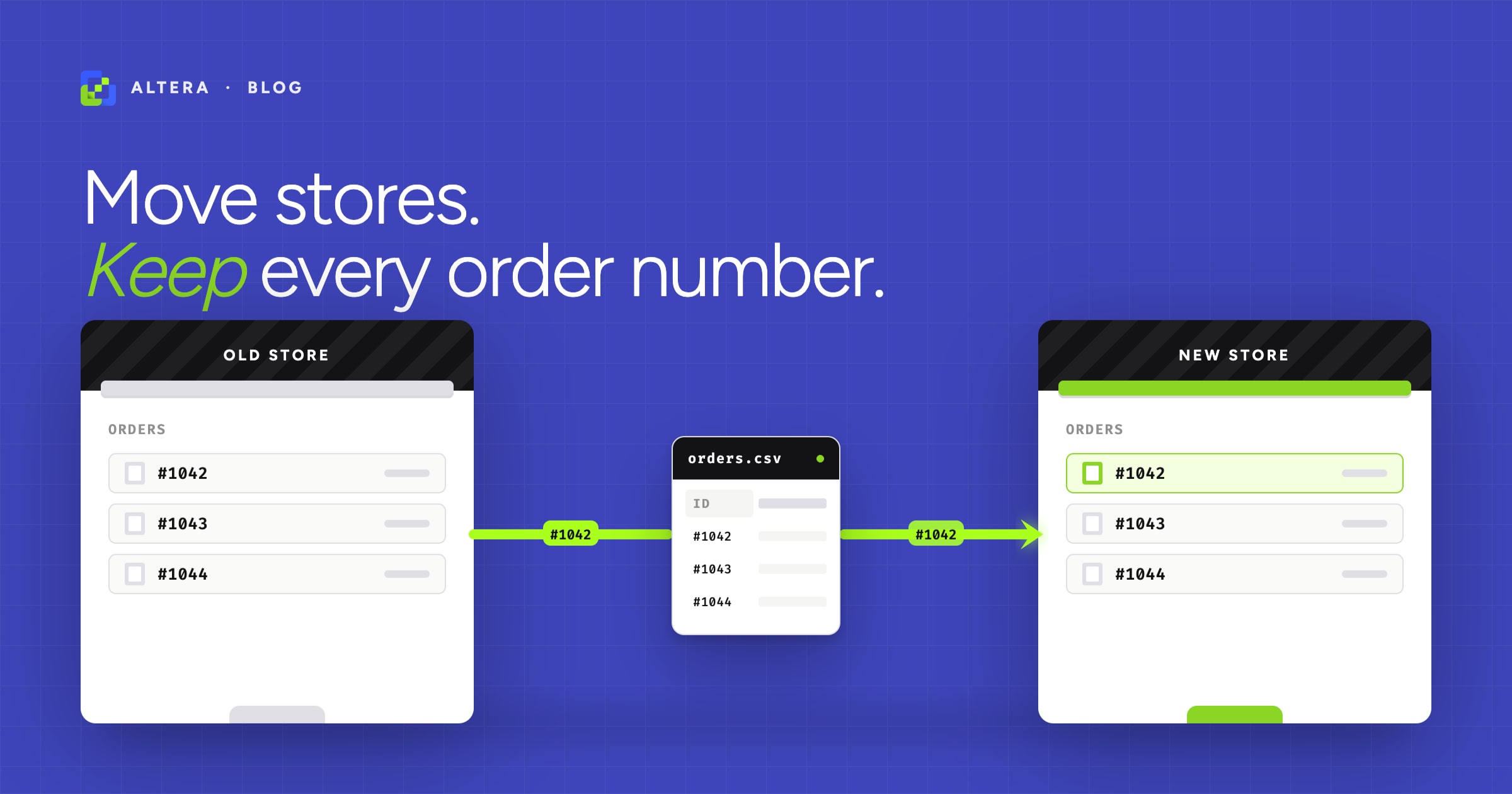
You went looking for Import orders in the Shopify admin and there isn’t one. Shopify imports products, customers, inventory, and gift cards, but not orders. The reason isn’t a missing feature. Orders touch customers, products, inventory, payments, and notifications, so a sloppy import touches all of them, and Shopify would rather force you to choose your tooling than ship a half-safe button.
This guide covers the most common version of the job: moving order history from one Shopify store to another with a CSV.
Should you actually import orders?#
Three Shopify-to-Shopify scenarios where it’s the right call:
- Cloning a store to a new region, currency, or legal entity and bringing the customer history along.
- Consolidating two Shopify stores into one (acquisition, brand merge, regional collapse).
- Rebuilding a store from scratch on new architecture but keeping the data.
One scenario where it’s the wrong call: you just want better analytics on yesterday’s orders. Use a reporting tool. Don’t reimport real orders into your live store.
Get the order of operations right#
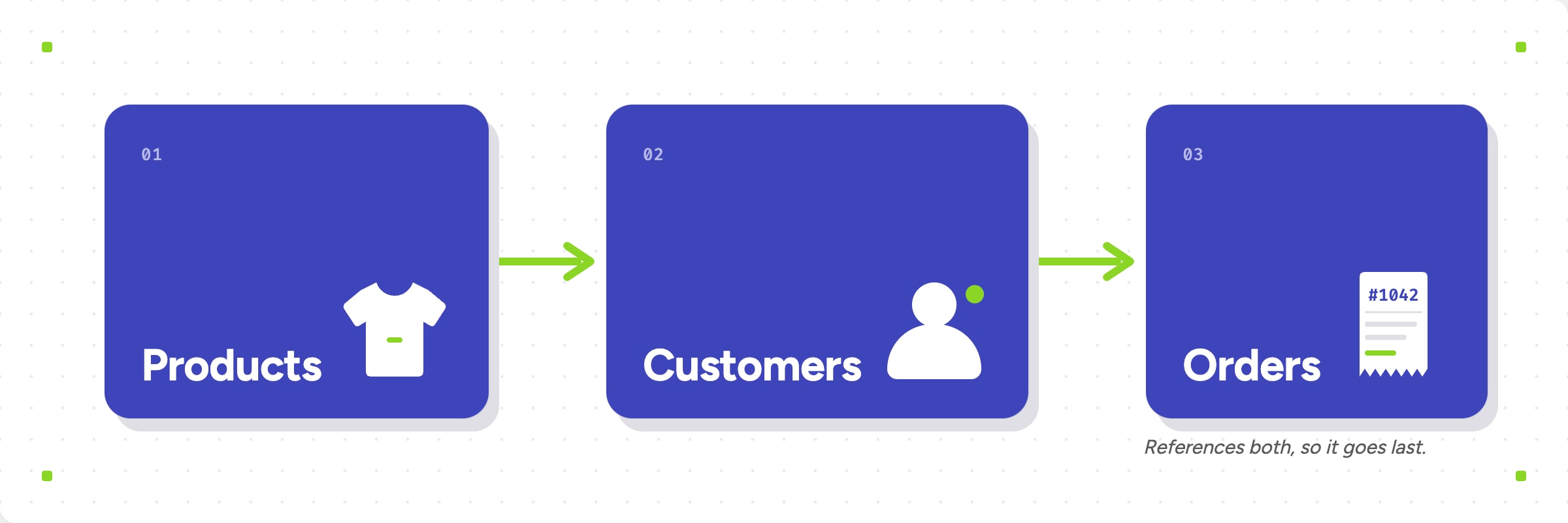
The rule that prevents most import problems: products → customers → orders.
Orders reference customers (by Customer: Email) and line items (by title and SKU). If a customer doesn’t exist when the order imports, the order still imports, but the customer page won’t show the history and reporting won’t roll up. Same idea for products that have been retitled or had their SKUs changed between the two stores.
Concrete sequence for a Shopify-to-Shopify move:
- Export and import products first. Verify SKUs match exactly between source and destination.
- Export and import customers second. Verify emails match exactly.
- Export and import orders last.
What a Shopify orders CSV actually looks like#
The fastest way to learn the format is to open Altera’s sample orders spreadsheet. The minimum columns for a Shopify-to-Shopify import are:
Identifying the order
Name, the order number including the#prefix (e.g.#IMPORT-1001)Command, set toREPLACEso re-running the import overwrites the existing order rather than duplicating itProcessed At, when the order was placed
Customer
Customer: Email, which matches against an existing customer in the destination store
Shipping address
Shipping: First Name,Shipping: Last NameShipping: Address 1,Shipping: Address 2Shipping: Zip,Shipping: City,Shipping: Province Code,Shipping: Country Code
Line items (one row per item)
Line: Type(e.g.Line Item)Line: Title,Line: NameLine: Quantity,Line: Price
Transaction (its own row, recording the payment)
Transaction: Kind(e.g.sale)Transaction: Processed AtTransaction: Amount
Fulfillment (its own row)
Fulfillment: Status(e.g.success)
For the full list of supported columns and accepted values, see the Altera order fields reference.
One order takes multiple rows, and each row plays a role#
This trips people up the first time they open an exported orders file. An order isn’t one row, it’s a stack of rows, and each row’s purpose is set by the Line: Type column. Possible values include line items, transactions (payments), refunds, fulfillments, and shipping or discount lines. The first row of an order carries the order-level fields and the first line item. Every other row leaves the order-level fields blank, shares the same Name, and uses Line: Type to declare what it is.
Line-item rows preserve the snapshot at sale time, like price, title, and quantity at the moment the order was placed, rather than current product data. That’s the right behavior for accounting and customer service, and it’s what makes a re-import faithful to the original order.
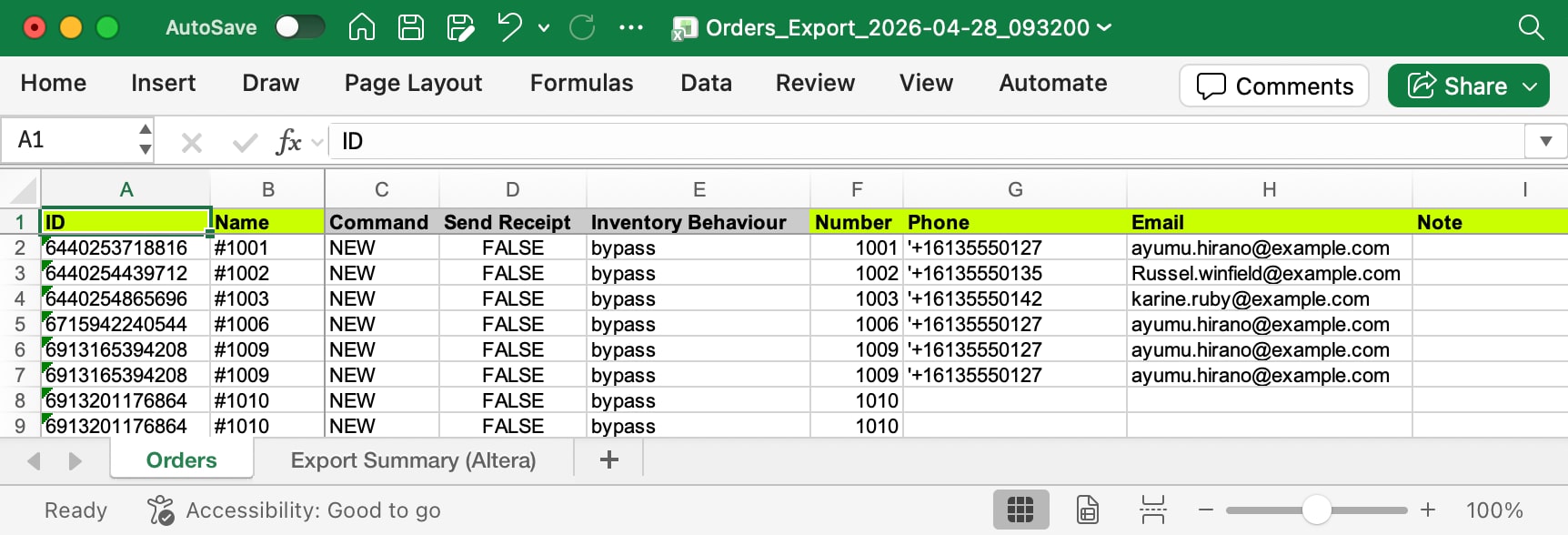
Already using Matrixify? Your existing orders files work in Altera with no reformatting. Same column names, same row-per-line-item structure.
Which column groups to take when exporting#
Altera’s order export lets you pick column groups, and not all of them help a Shopify-to-Shopify backfill. Take General, Customers, Line Type, Line Items, Refunds, Transactions, Fulfillments, Payment Terms, and Metafields. Skip Line Items Product Data, Presentment Currency, and Product Metafields. Those three contain current state from the source store rather than the snapshot at sale time, so they bloat the file without helping the import.
CSV or Excel?#
Excel is more user-friendly for editing but it caps out around a million rows. For very large stores (or any store where one order can produce a dozen rows once you include transactions and fulfillments), CSV is the safer format. Use Excel for stores under roughly fifty thousand orders, CSV otherwise.
Turn off the side effects#
This is where most Shopify-to-Shopify imports go wrong. Two things you have to handle yourself, and three you don’t.
Staff notifications. Imagine three staff each getting an email for every one of the 8,000 orders you imported. Disable staff notifications at Settings → Notifications → Staff notifications before the import, then turn them back on after.
Third-party integrations. Imported orders look like new orders to anything listening for the order-created webhook. Klaviyo will fire abandoned-cart and post-purchase flows. Your 3PL might try to ship them. Your accounting tool might re-bill them. Walk through every app on the destination store before importing, and either disable the ones that act on order creation or configure them to ignore the imported batch.
The three things you don’t have to worry about, but it’s worth knowing why:
- Customer notifications. Shopify doesn’t send the order confirmation email when an order comes in via import, so customers don’t get spammed for orders they placed two years ago.
- Inventory. Altera bypasses inventory changes by default for order imports, so the new store’s stock counts stay where they were.
- Payments. Imported orders don’t capture funds. Shopify won’t try to charge the card again. The
Payment: Statusyou set in the CSV is the status the order ends up with.
Preserve the order numbers#
A detail most articles miss but matters in a Shopify-to-Shopify move: order numbers.
Shopify normally auto-numbers orders sequentially. If you import order #1042 from the old store and the new store is already at order #23, you have two choices.
Preserve the original numbers. Set the Name column to the original number (e.g. #1042). Customer service and accounting can find any order by its original number, and your 3PL/support history stays intact. The Altera sample file does this with a clear #IMPORT- prefix so imported orders are easy to distinguish from new ones during the migration window.
Renumber on import. Skip the Name column and let Shopify assign new numbers. Cleaner-looking but it breaks every external system that referenced the old numbers, including 3PLs, accounting exports, and support tickets.
Default to preserving. Renumber only if you have a specific reason and you’ve audited every downstream system that points at the old numbers.
How to actually run the import#
A. Using Altera#
- Export orders from the source store. If you only need a subset, filter to those orders before exporting (by date range, status, or by selecting them in the Shopify admin first) so the file stays small and predictable.
- In the destination store, disable staff notifications so you don’t flood your inboxes during the import.
- Audit any third-party app on the destination store that acts on order-created events (Klaviyo, your 3PL, accounting tools). Pause anything that would treat imported orders as fresh orders.
- In Altera, go to Imports and upload the file.
- Run a small batch first. Pick 10 representative orders, import them, and spot-check the result in admin.
- Run the full import.
- Re-enable staff notifications and any third-party flows you paused.
B. CLI (developer / agency option)#
Useful for agencies running the same migration playbook across multiple client stores, or scripting it into a launch checklist.
npx altera shop use original-store.myshopify.com
npx altera export create orders --output Old_Orders.csv

npx altera shop use new-store.myshopify.com
npx altera import create Old_Orders.csvSame column layout, same values, no admin in the loop.
After the import: what to check#
A short verification pass:
- Spot-check 5 orders in the admin against the source data. Customer name, products, totals, discounts, and dates.
- Confirm no customer emails went out. Check a test inbox you have access to.
- Confirm inventory levels didn’t move on a known-stocked product.
If any of those are off, stop and undo before importing more.
It’s mostly two things#
Get the order of operations right (products first, then customers, then orders). Disable staff notifications and pause any third-party app that fires on new orders. Customer emails, inventory, and payments take care of themselves because Altera doesn’t touch them by default, but staff notifications and external integrations you have to handle yourself. Most failed imports were one toggle away from working.